
 FAQs
FAQs
How do I set up delivery availability only on specific event dates?
B
Written by Bird Pickup & Delivery
Updated October 5, 2026
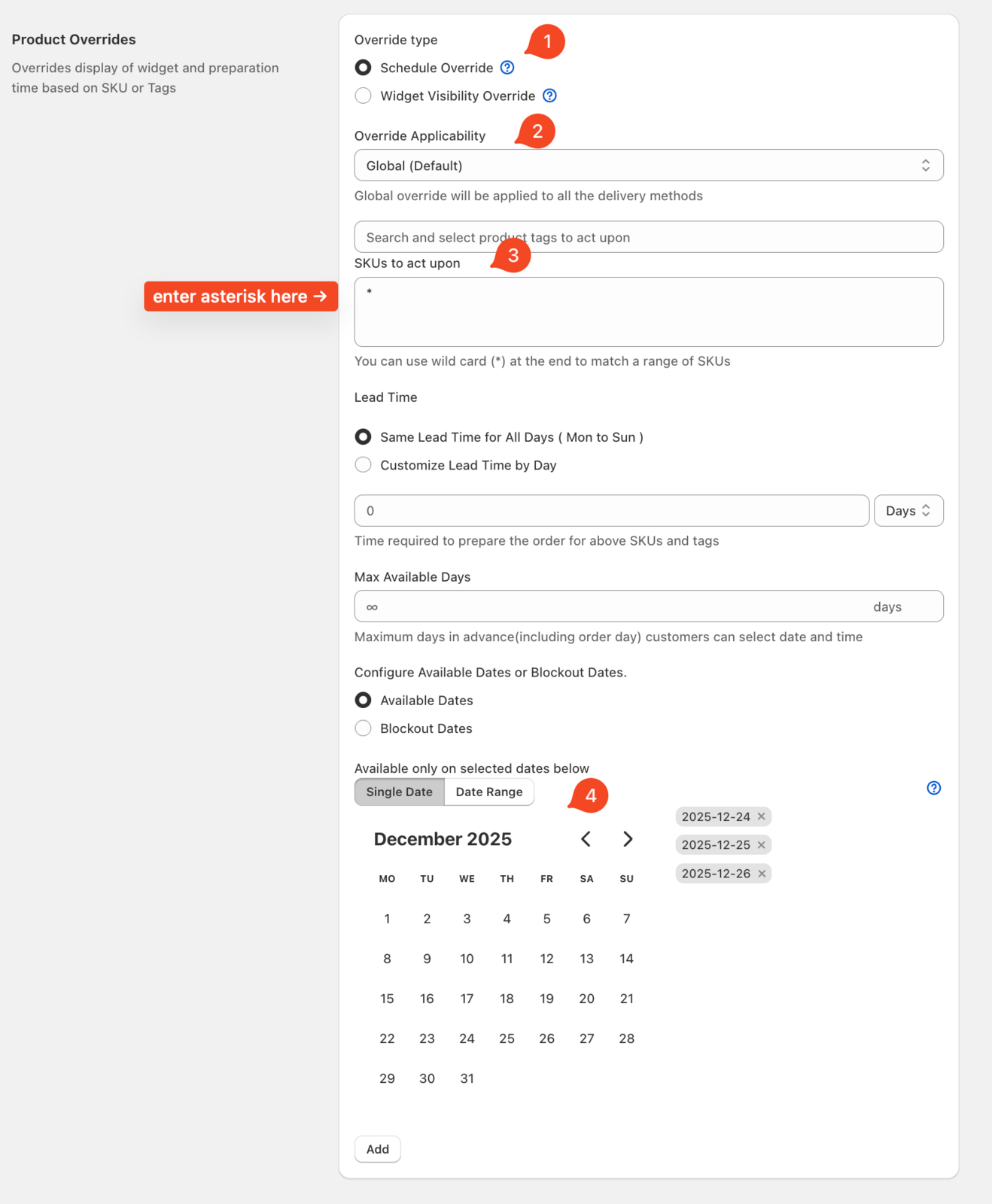
Use Product Override to restrict your calendar to selected holiday or event dates. This creates an inverse calendar where only your chosen dates are available. By default, the calendar shows no available dates. Customers can only order on the dates you specify.
- Go to Bird Settings > Product overrides. Click Add override.
- In Override applicability, choose the location and method, for example Main Street - Delivery. To cover more than one location or method, add one override for each.
- In SKU patterns, enter an asterisk
*as a wildcard. This matches all products and applies the rule store-wide. - Scroll to Availability override and select Override specific dates. Keep Override mode on Exclusive dates, then select the calendar days customers can order. Avoid using Blockout Dates when using the catch-all
*wildcard. Blockout Dates can be added directly in Store Pickup: Blockout Dates. - Click Save to activate your limited schedule. Use Widget preview to confirm only your selected dates appear. You’re done.
Product Override overrides your base availability settings. To understand when to use Product Override versus What Is the Difference Between Product Availability and Product Override?, review the differences between these features. For detailed guidance, see Store Pickup: Product Override.
Related Articles
Was this article helpful?
Thanks for your feedback!
Related articles
How can I hide my store's location/address in the cart widget?
Can customers change their delivery/pickup selection after ordering?
How do I turn on Shopify cart notes and change their label?
How do I create time slots for pickup or delivery?
Why do my pickup and local delivery orders show as "Shipping"?