
 Getting Started
How to Set Up the Product Page Widget in Shopify (Bird V2)
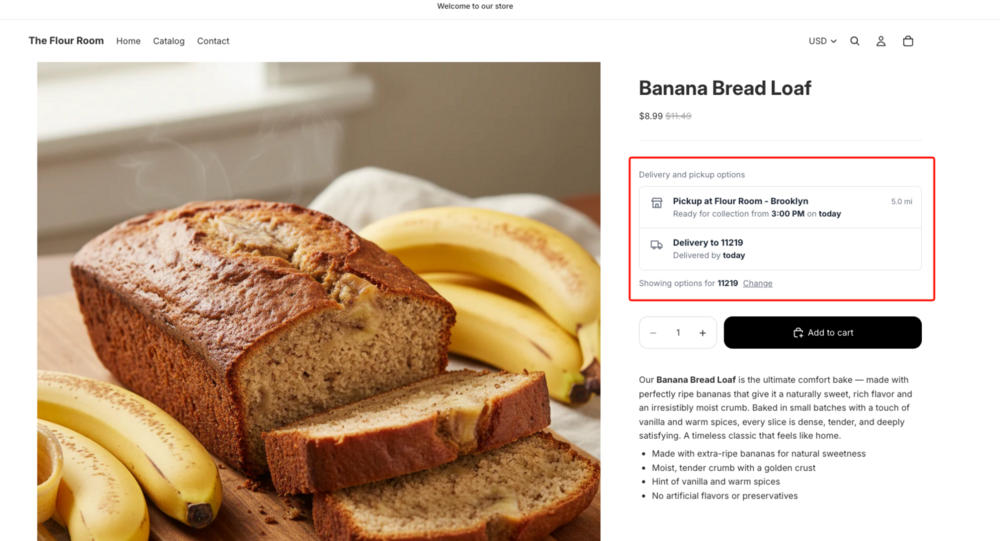
The product page widget shows pickup and delivery availability directly on the product page — before the customer adds to cart. Depending on how your delivery zones are configured, the customer enters their zip or postal code (zip/postal code mode) or their address (radius or driving-distance mode), and sees:
- Nearest pickup location — store name and address, earliest ready-by date and time, and distance
- Delivery availability and earliest estimated delivery date for their area
- Stock availability per location, when inventory is enabled in Settings → Inventory
It’s one of the most-requested Bird features: giving customers fulfillment visibility at the exact moment they’re deciding to buy.
Requirements
Widget V2 must be enabled on your store before the product page widget is available. See How to Migrate to Widget V2.
Step 1: Enable the Product Page Widget
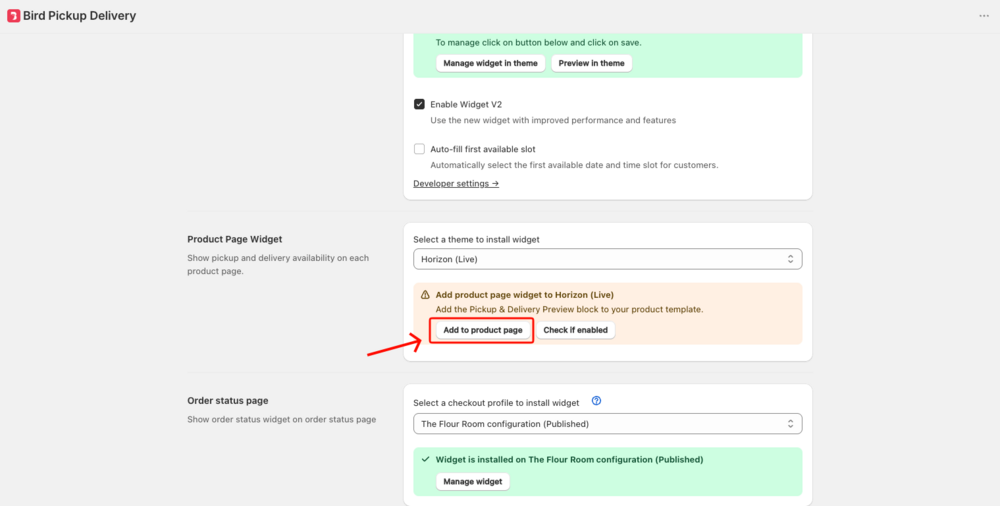
- In Bird, go to Settings → Widget Placement
- Scroll down to Product Page Widget
- Select your active theme from the dropdown
- Click Add to product page
Step 2: Save in Theme Editor
Clicking Add to product page opens the Shopify theme editor with the Bird block already placed in your product template. Reposition the block if needed, then click Save in the top-right corner.
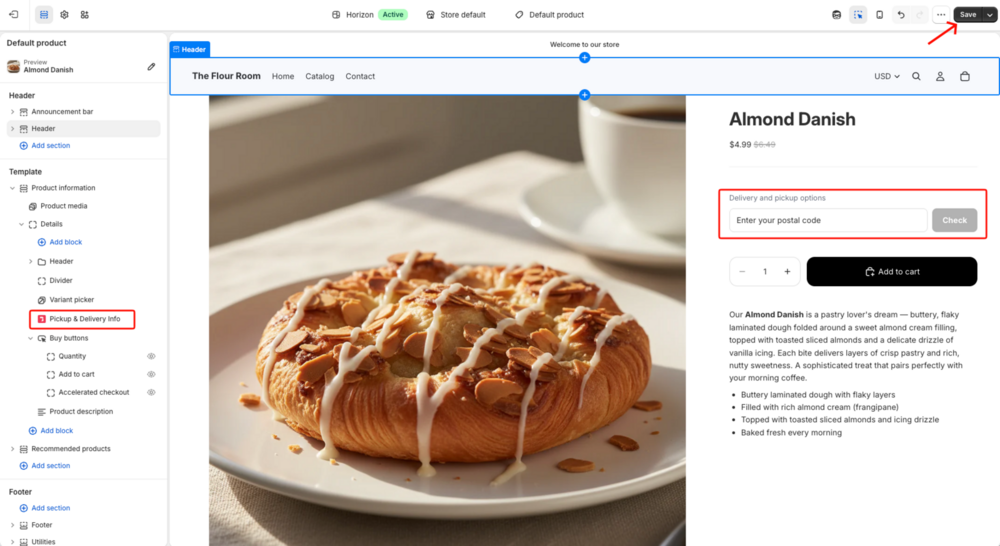
To add the widget to additional product templates (e.g. a custom or pre-order template), open the Shopify theme editor, switch to that template, and add the Pickup & Delivery Info block manually from the app blocks section.
What Your Customers Experience
The widget shows pickup and delivery options side by side on the same screen — no page navigation, no cart required. The pickup card and delivery card sit next to each other so the customer can compare both at a glance.
If geolocation is enabled in your app settings, customers can tap Use my location to detect their position automatically instead of entering it manually.
View All Stores
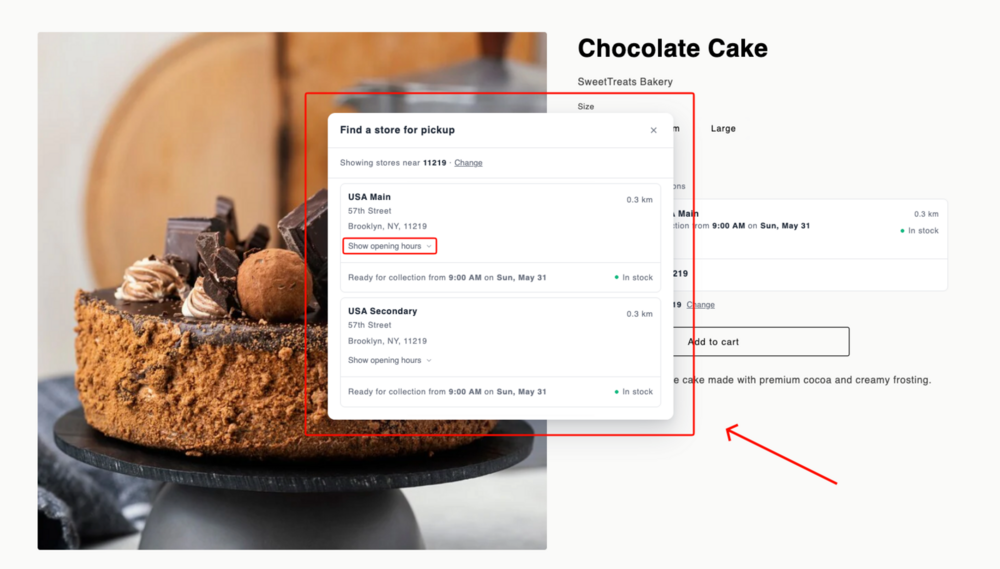
If you have multiple pickup locations, a View all stores button appears on the pickup card. Clicking it opens a full store list showing every eligible location — with the store name, full address, distance, earliest ready-by time, stock status, and opening hours for each one. Customers can tap any store address to open directions in their default maps app (Google Maps, Apple Maps, etc.).
This is especially powerful for multi-location merchants: customers self-select the store that works best for them before they ever add to cart, which means fewer order errors and fewer “can I pick it up from a different location?” messages after the fact.
Real-Time Stock by Location
When inventory is enabled in Settings → Inventory (“Enable realtime inventory”), the widget goes a step further: it shows stock status for the selected variant at each pickup location, right there on the product page.
- In stock — the variant has enough quantity at this location
- 3 in stock — the exact count is shown once quantity drops below a low-stock threshold, so customers know to act fast
- Out of stock — no inventory for this variant at this location
This means a customer can see immediately whether the item they want is available at their nearest store — before they head out. Stock is shown per pickup location only; it is not shown on the delivery card.
Troubleshooting
Widget not appearing on the product page — Check that the Bird app embed block is enabled in the Shopify theme editor (under App embeds), in addition to the product widget block itself. Both must be active.
Widget shows no pickup or delivery options — First, if you only have one location, confirm that Enable Store Pickup and/or Enable Local Delivery are turned on under Settings → Configure Locations → [Your location]. If those are enabled, confirm the product is not excluded by Product Availability for the active location for Pickup or Local Delivery. Also check the Widget Visibility setting in case the widget is hidden for the specific product.
Related Articles
Was this article helpful?
Thanks for your feedback!