
 Local Delivery
Local Delivery: Blockout Dates
Block specific dates (or date ranges) with optional time restrictions from the delivery calendar for each location. Prevent customers from selecting holidays, closed days, or unavailable date-time slots for delivery.
Tip: To apply the same blockout dates to multiple locations at once, see How to Add Blockout Dates to Multiple Locations at Once.
Table of Contents
- What Blockout Dates Do
- Prerequisites
- Step-by-Step Configuration
- Managing Blocked Dates
- Interaction with Preparation Time
- Common Questions
- Troubleshooting
- Quick Reference
- Related Articles
What Blockout Dates Do
What this feature does:
- Prevents customers from selecting holidays or closed days for delivery
- Blocks entire days or specific time periods on selected dates per location
- Sets the maximum advance booking window for each location
- Can block single dates, multiple individual dates, or date ranges
- Can add time restrictions to selected dates (optional)
What this feature does NOT do:
- Affect existing orders (only prevents new bookings)
- Set preparation time (configured separately)
- Set operating hours (configured separately)
Prerequisites
Before configuring blockout dates, ensure:
- Local Delivery is enabled for the location in Bird Settings
- Availability schedule is configured (operating hours and time slots)
Step-by-Step Configuration
Step 1: Access Blockout Date Settings
- Go to Bird Settings > Configure Locations (if you see “Pickup & Delivery” you’re in legacy mode)
- Click on the location where you want to configure blockout dates
- Scroll down and find the Edit Settings button for Local Delivery
- Click Edit Settings
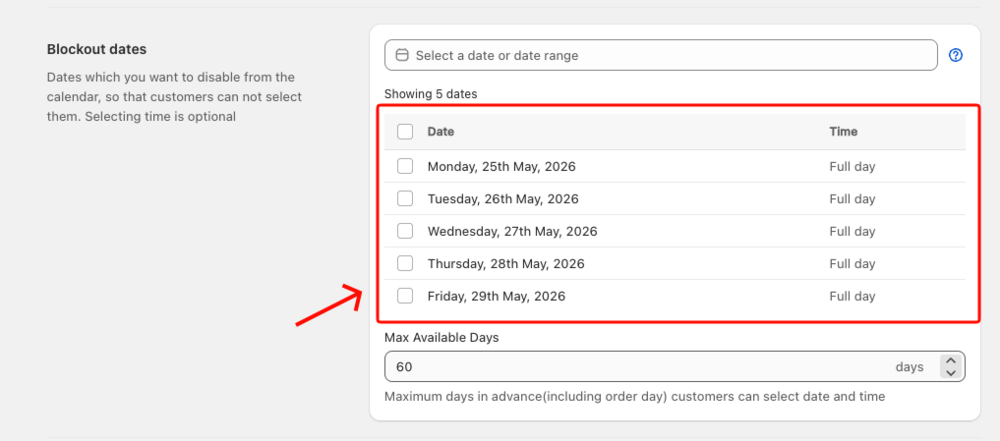
- Scroll to the Blockout dates section
Step 2: Open the Date Picker
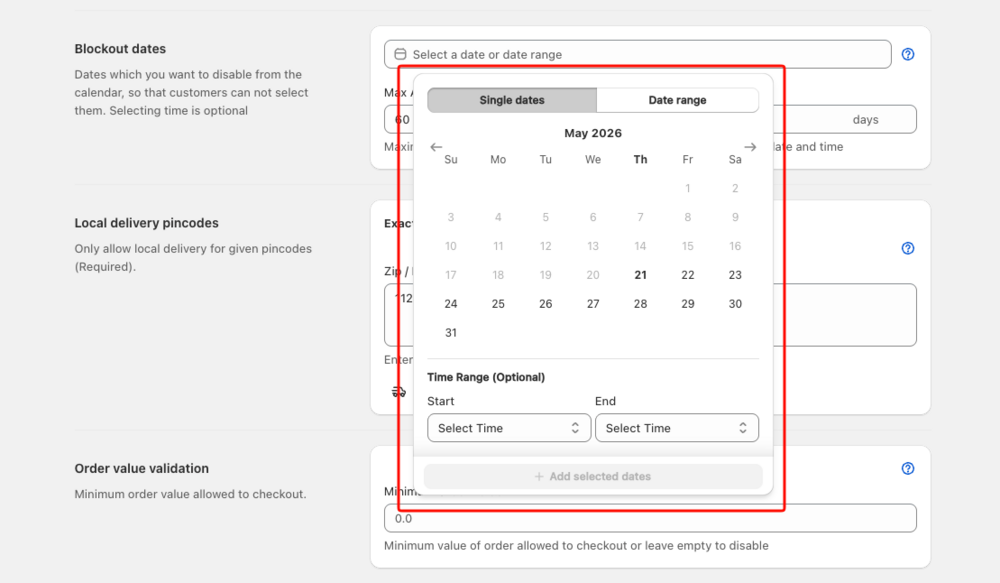
- Click the date input field (the field with the calendar icon that says “Select a date or date range”)
- A date picker popover will open
Step 3: Choose Blocking Method
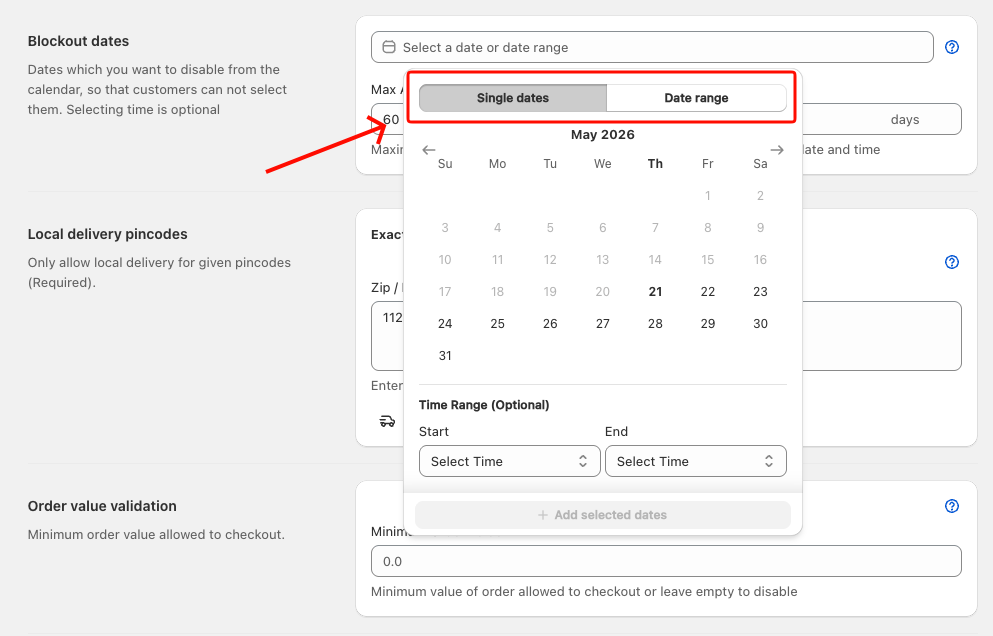
Inside the date picker, select how you want to block dates using the two buttons at the top:
Option A: Single dates
- Click Single dates
- Use this to block one or more individual non-consecutive dates
- Best for holidays or one-off closures
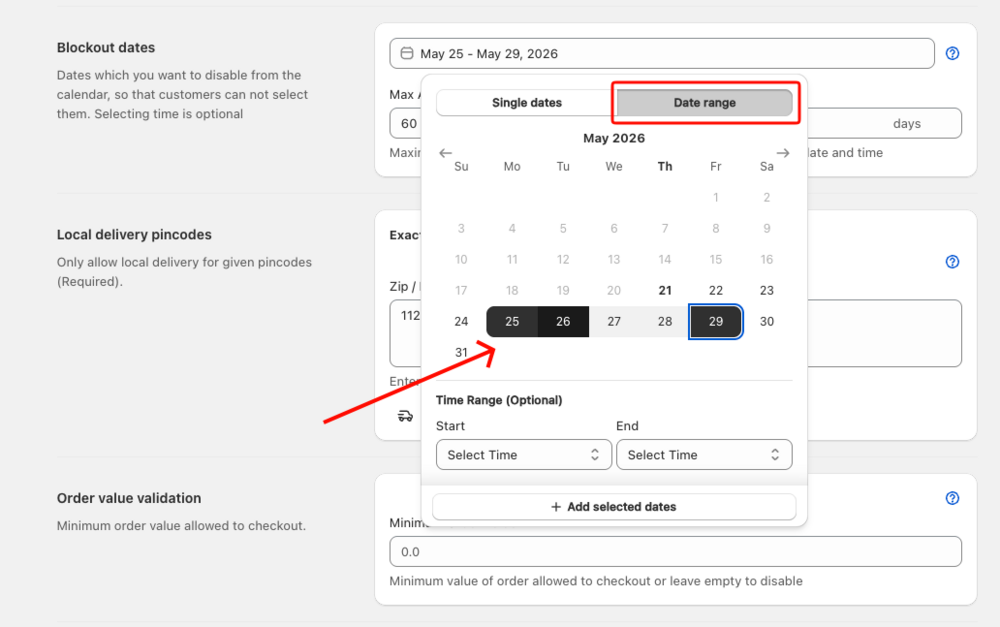
Option B: Date range
- Click Date range
- Use this to block a continuous span of dates
- Best for extended closures or vacation periods
Step 4: Select Date(s)
For Single dates mode:
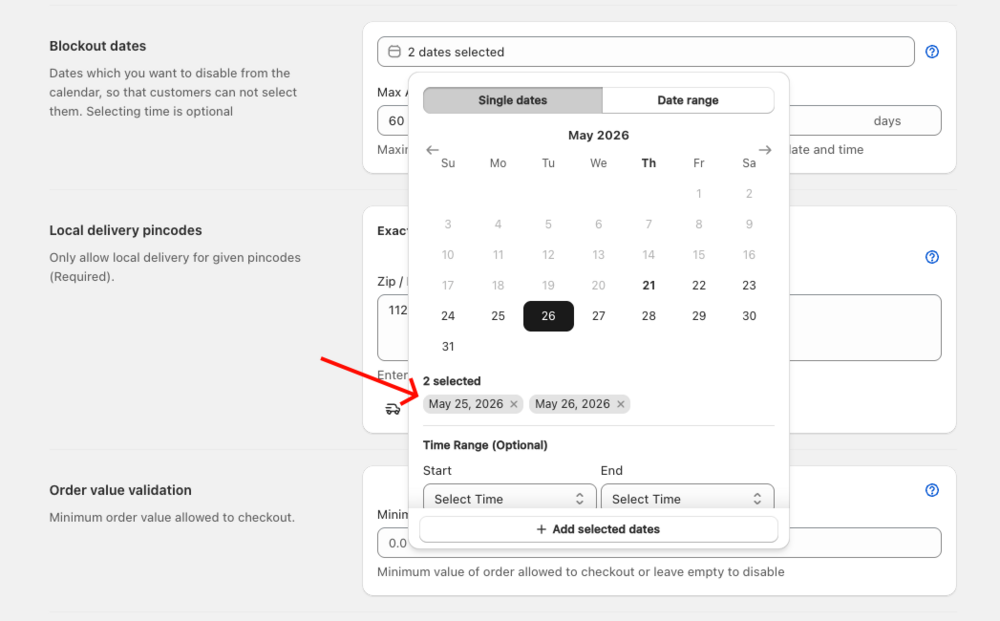
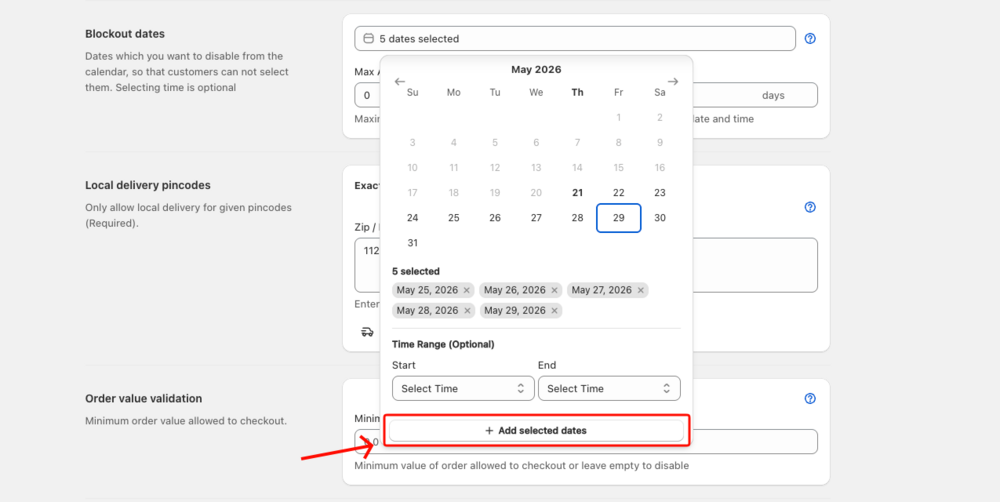
- Click any date in the calendar to select it — it will appear as a tag below the calendar
- Click additional dates to select multiple at once
- To deselect a date, click it again in the calendar or click the × on its tag
- Use the left/right arrows to navigate between months
For Date range mode:
- Click the start date in the calendar
- Click the end date — all dates between start and end will be highlighted
- Use the left/right arrows to navigate between months
Step 5: Set Time Restrictions (Optional)
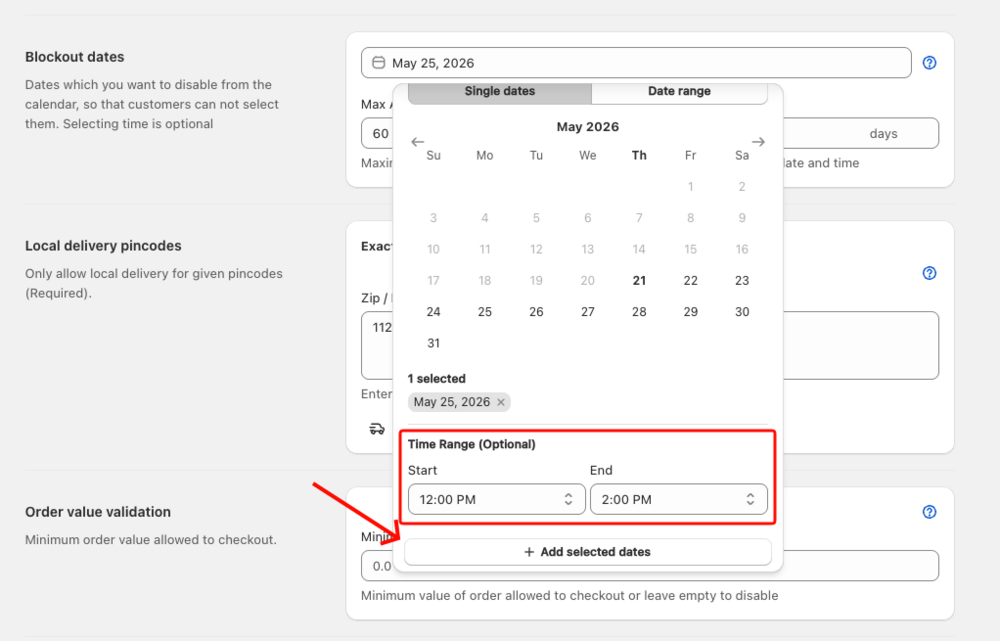
Below the calendar, you will see a Time Range (Optional) section.
Block Entire Day (default):
- Leave Start and End times empty
- The entire day will be blocked — no delivery available on that date
Block a Specific Time Period:
- Set a Start time (e.g., 2:00 PM)
- Set an End time (e.g., 4:00 PM)
- Only that time window will be blocked on the selected date(s)
- Other time slots on that date remain available
Example: Block December 25th entirely for Christmas, or block December 24th from 2:00 PM to 11:59 PM only (morning deliveries available if your availability permits).
Step 6: Add Blocked Date(s)
- Review your selected date(s) and any time restrictions you set
- Click the Add selected dates button at the bottom of the date picker
- The popover closes and the blocked date(s) appear in the table below the date field
- Repeat from Step 2 to block additional dates
Step 7: Set Maximum Available Days
Limit how far in advance customers can book delivery orders:
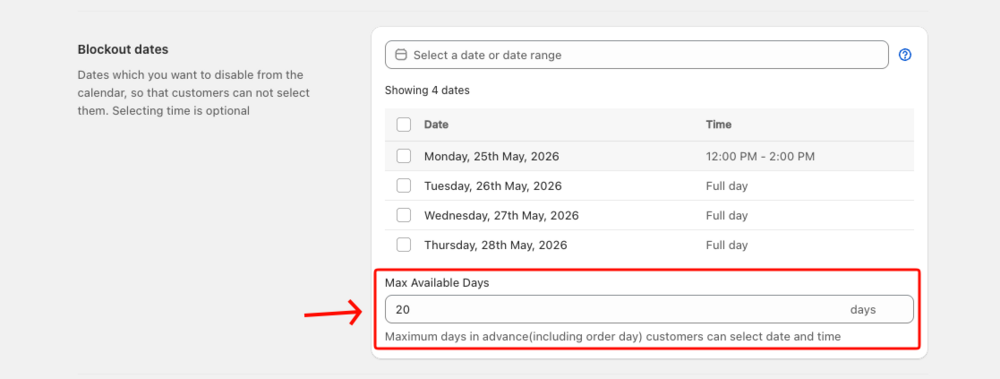
- In the Blockout dates section, find Max Available Days
- Enter the number of days customers can book in advance
- Example: 30 = customers can book from the current date up to 30 days ahead (current date counts as day 1)
- Example: 7 = customers can book for the next 7 days (current date + 6 more days)
- Leave blank for unlimited (default)
- Click Save
Important: The current date (when the customer views the calendar) counts as day 1 in this calculation. Blocked dates count toward this total. If you set 30 days and block 5 days, customers see 25 available days.
Example calculation: Max Available Days: 30 (current date + 29 more days), Blocked dates: 5 days = Customers see 25 selectable dates.
Step 8: Save and Preview
- Review all your blocked dates in the table
- Click Save to apply changes
- Go to Bird Settings > Widget Design > Widget Preview to see how blocked dates appear to customers
- Test selecting dates to verify blocks work correctly
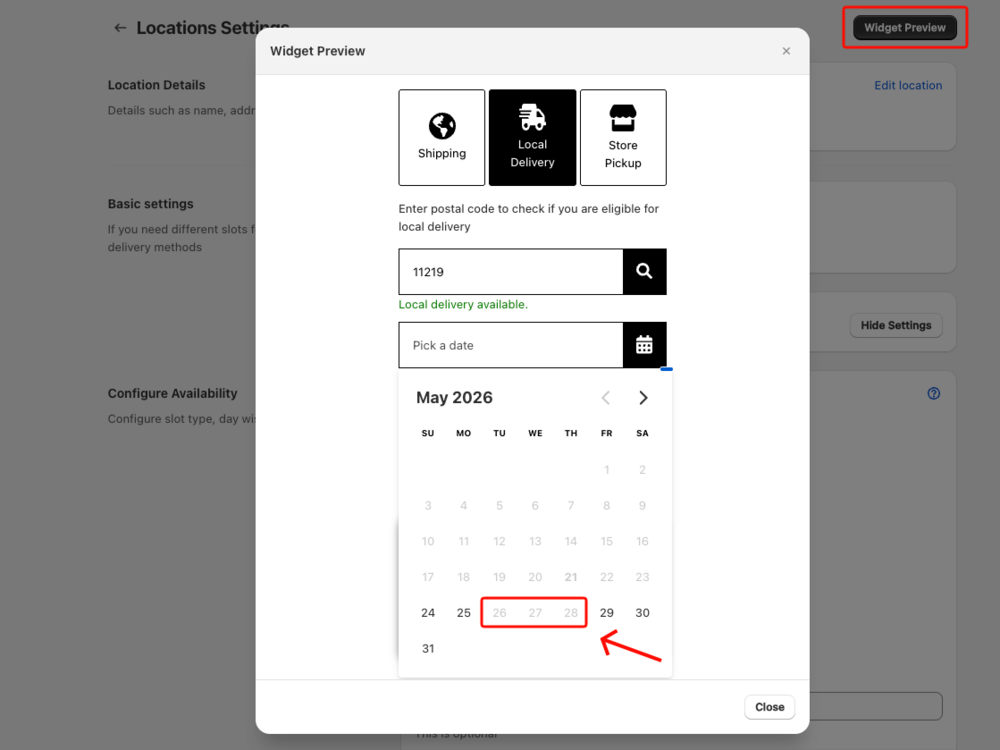
Managing Blocked Dates
Removing individual dates
- In the blocked dates table, check the box next to the date(s) you want to remove
- Click Delete selected in the bulk action bar that appears
- Click Save to apply the change
Removing multiple dates at once
- Check the boxes for all dates you want to remove, or use the header checkbox to select all visible rows
- Click Delete selected
- Click Save
Filtering the blocked dates table
When you have blockout dates across multiple months or years, filter dropdowns appear above the table:
- Use the month dropdown to show only dates from a specific month
- Use the year dropdown to show only dates from a specific year
- The table shows 10 dates per page — use the pagination arrows to navigate
Interaction with Preparation Time
Blockout dates and preparation time work together - both rules are enforced (they stack, not override).
How Rules Combine
Example 1: Simple Stacking
- Today: Monday, 10:00 AM
- Preparation time: 2 days (blocks Monday, Tuesday)
- Blockout dates: Wednesday-Friday (holiday closure)
- Result: Customer sees Saturday as earliest available date
- Both rules applied: prep time blocks Mon-Tue, blockout blocks Wed-Fri
Example 2: Cut-Off Time Interaction
- Today: Monday, 3:00 PM
- Cut-off time: 2:00 PM
- Lead time after cut-off: 2 days
- Blockout dates: Wednesday only
- Result:
- Cut-off passed, so 2-day lead = Wednesday earliest
- Wednesday blocked (blockout date)
- Customer sees Thursday
Example 3: Maximum Available Days
- Today: Monday
- Maximum available days: 30 days
- Blockout dates: Days 25-30 (last week of month)
- Result:
- Customer can book through Day 24
- Days 25-30 blocked by blockout dates
- Maximum still 30 days, but last 5 days unavailable
Visual Timeline Example
Week 1:          Mon Tue Wed Thu Fri Sat Sun
Preparation:     [X] [X]  ✓   ✓   ✓   ✓   ✓   (2-day lead time)
Blockout:         ✓   ✓   ✓   ✓  [X] [X] [X]  (Weekend blocked)
Final Result:    [X] [X]  ✓   ✓  [X] [X] [X]  (Wed-Thu available)
                                  ^^^^^^^^^^^
                                  Both rules enforced
Key Takeaways
- Blockout dates and preparation time are cumulative (both enforced)
- Neither rule overrides the other
- The most restrictive rule always wins for each specific date
- Customer sees the combined effect of all rules
Common Questions
Can I block different dates for different locations?
Yes. Each location can have its own blockout dates. Configure them separately in Bird Settings > Configure Locations > [Select Location] > Edit Settings > Blockout dates.
Example:
- Location A (downtown): Block December 24-26 for Christmas
- Location B (suburban): Block December 25 only
- Location C (airport zone): No blockout dates (deliver every day)
Can I unblock a date after blocking it?
Yes. In the Blockout dates section, check the box next to the date in the table and click Delete selected. Click Save to apply.
Can I block multiple non-consecutive dates in one go?
Yes. Open the date picker, select Single dates mode, and click each date you want to block — they’ll appear as tags. Then click Add selected dates to add them all at once.
Can I block weekends automatically?
No. Blockout dates are for specific dates, not recurring patterns. To disable weekends, use “Customize Availability by Day” in Delivery Availability settings to disable Saturday and Sunday.
Alternative for recurring closures:
- Use Configure Delivery Availability to disable specific weekdays
- Use Blockout dates only for one-off closures or holidays
What if I block all available dates?
If all dates within the maximum available days window are blocked, customers won’t see any available dates. Make sure you leave some dates unblocked.
How does blockout dates work with preparation time?
Both are enforced:
- Preparation time: Blocks dates/slots that don’t meet lead time requirements
- Blockout dates: Additionally blocks specific dates you configure
Example:
- Preparation time: 1 day (blocks same-day)
- Blockout dates: December 25
- Result: Same-day is blocked (preparation time) + December 25 is blocked (blockout dates)
Can I block specific time slots on a date without blocking the entire day?
Yes. When adding a blockout date, set Start and End times in the Time Range (Optional) section before clicking Add selected dates. Other times on that date remain available.
Example:
- Date: December 24
- Start Time: 2:00 PM
- End Time: 11:59 PM
- Click Add selected dates
- Result: Deliveries available in the morning, blocked in afternoon/evening
Troubleshooting
Issue: Blocked dates still appear available
Problem: Blockout dates may not be saved or configured correctly.
Solution:
- Verify you clicked Add selected dates inside the date picker before the popover closed
- Check that the date appears in the blocked dates table
- Ensure you clicked Save to apply changes
- Use Widget Preview to verify blocks work
- Clear browser cache and test again
Issue: Can’t select dates far in advance
Problem: Maximum Available Days may be set too low.
Solution:
- Check Max Available Days setting
- Increase the number if you want a longer booking window
- Remember: blocked dates count toward this total
- Save and test with Widget Preview
Issue: Time-specific blocks not working
Problem: Time restrictions may not be set correctly.
Solution:
- Verify Start and End times are set correctly in the Time Range (Optional) section
- Ensure start time is before end time
- Check that you clicked Add selected dates after setting times
- Test with Widget Preview at different times
- Verify delivery availability has time slots configured
Issue: Blocked dates from last year still showing
Problem: Old blockout dates haven’t been removed.
Solution:
- Go to the Blockout dates section
- Use the year filter dropdown to show dates from the previous year
- Select all outdated dates and click Delete selected
- Add new dates for the current year
- Click Save
Tip: Review and update blockout dates at the start of each year to remove old holiday blocks.
Quick Reference
Blocking Methods:
- Single dates: Block one or more individual dates (multi-select supported)
- Date range: Block a continuous span of dates
Time Restrictions (applied to selected dates):
- Entire Day: Leave Start and End times empty
- Specific Time Period: Set start and end times before clicking Add selected dates
Max Available Days:
- Sets total booking window
- Blocked dates count toward total
- Current date counts as day 1
Common Blockout Dates:
- Holidays: Christmas (Dec 25), New Year’s Day (Jan 1), Thanksgiving (4th Thu in Nov)
- Extended closures: Vacation periods, renovations, maintenance
- Event conflicts: Local events affecting delivery routes
- Weather: Severe weather days (add as needed)
Navigation: Bird Settings > Configure Locations > [Select Location] > Edit Settings > Blockout dates
Related Articles
Was this article helpful?
Thanks for your feedback!