
 Notifications
How to Add Date and Time to Packaging Slips and Invoices
Learn to display delivery date and time on packaging slips for better tracking.
The Quick Setup Method below works with both V1 and V2 widgets. The Advanced Method with Order Printer Pro uses cart attributes and only works with the V1 widget.
Quick Setup Method
Enable date/time display on packaging slips in three simple steps.
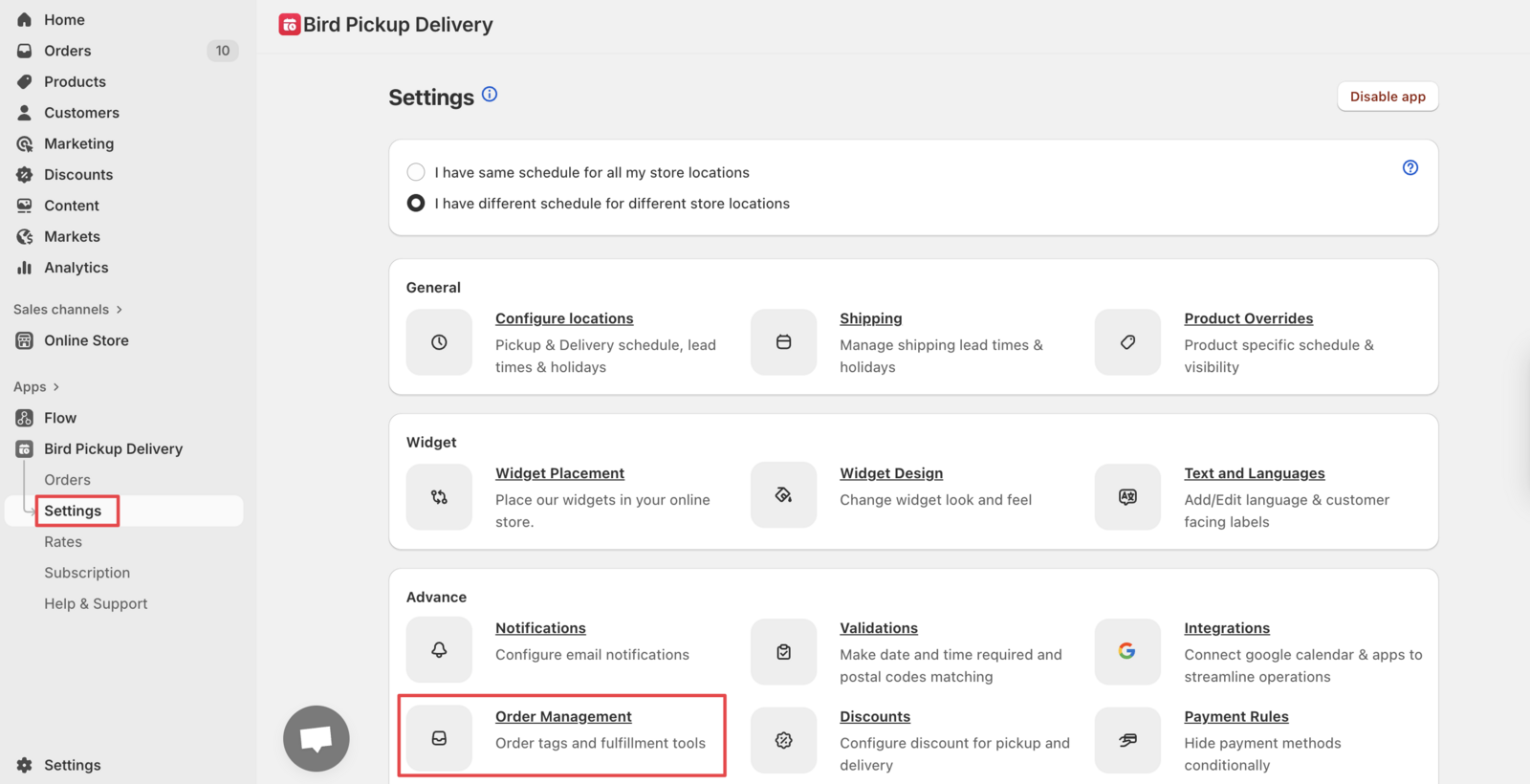
Step 1: Access Order Management Settings
Navigate to Bird App Settings > Order Management.
Step 2: Enable Order Notes
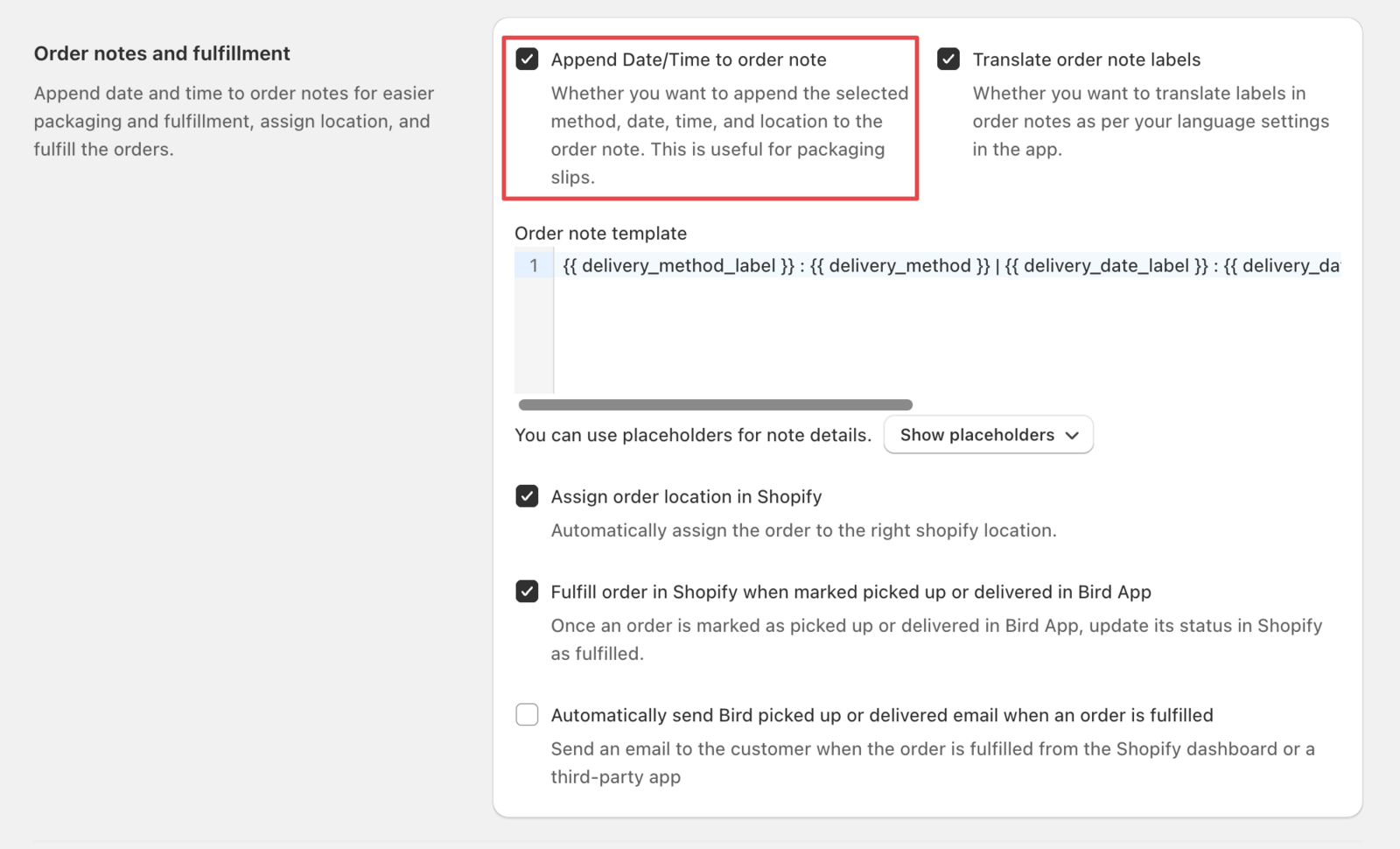
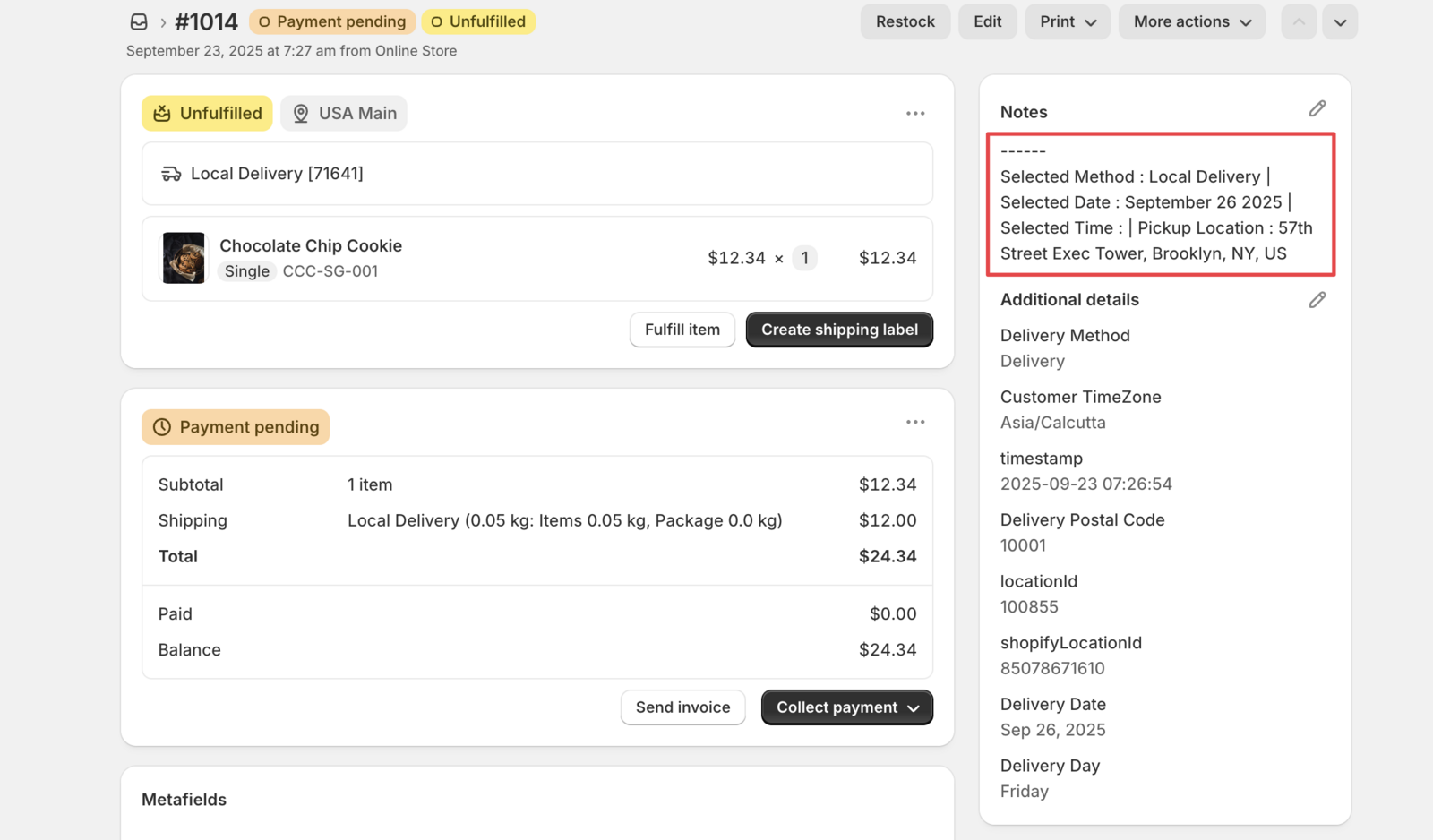
Scroll to Order notes and fulfillment section. Enable the “Append date/time to order note” option to add date/time information to order notes:
Step 3: Format Display (Optional)
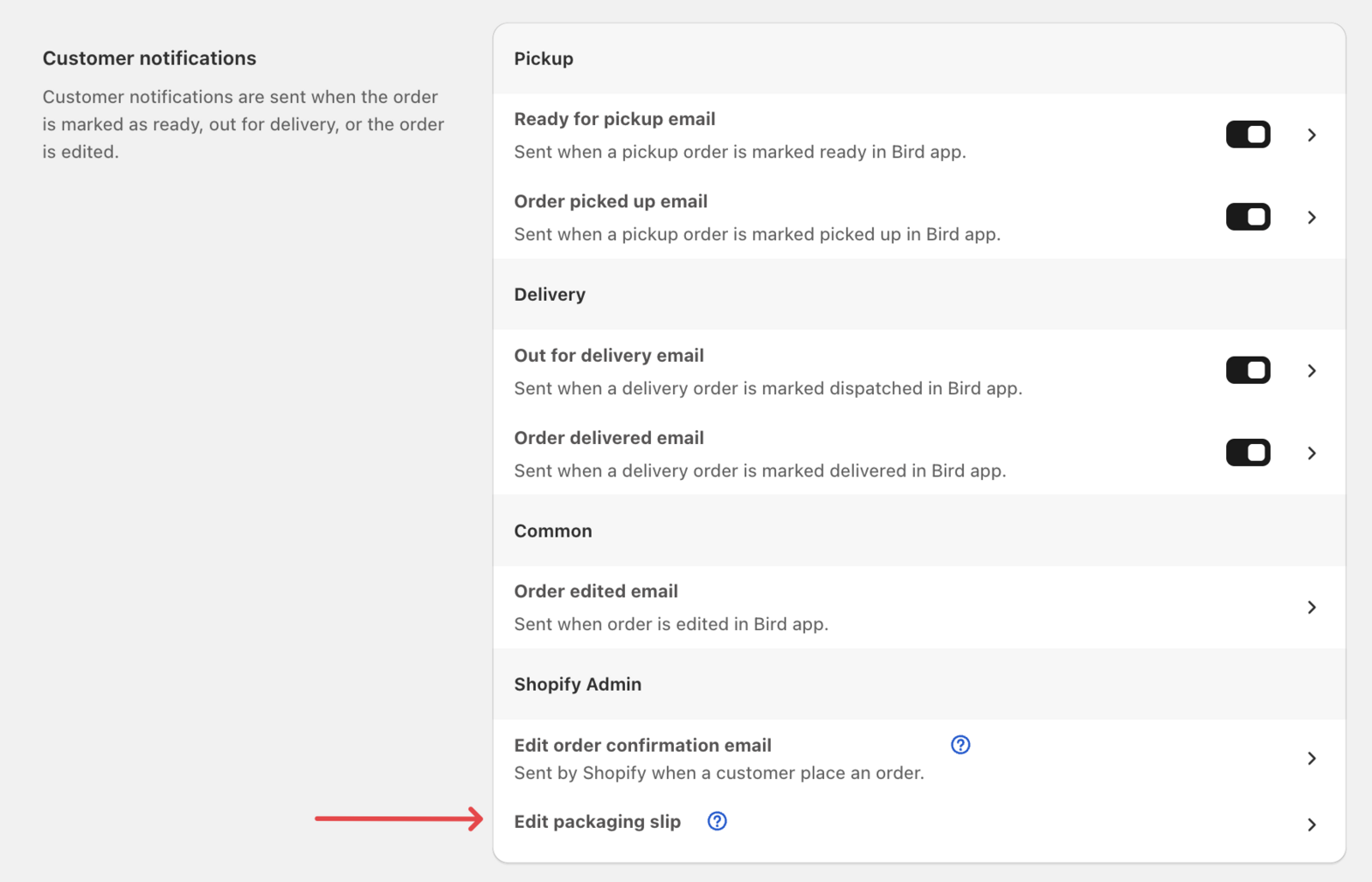
For better formatting, navigate to Bird App Settings > Notifications > Customer notifications > Edit packaging slip.
Replace the existing code:
<p class="notes-details">
   {{ order.note }}
</p>
With this improved formatting:
{% assign note_array = order.note | split: " | " %}
{% for note_item in note_array %}
   <p class="notes-details">{{ note_item }}</p>
{% endfor %}
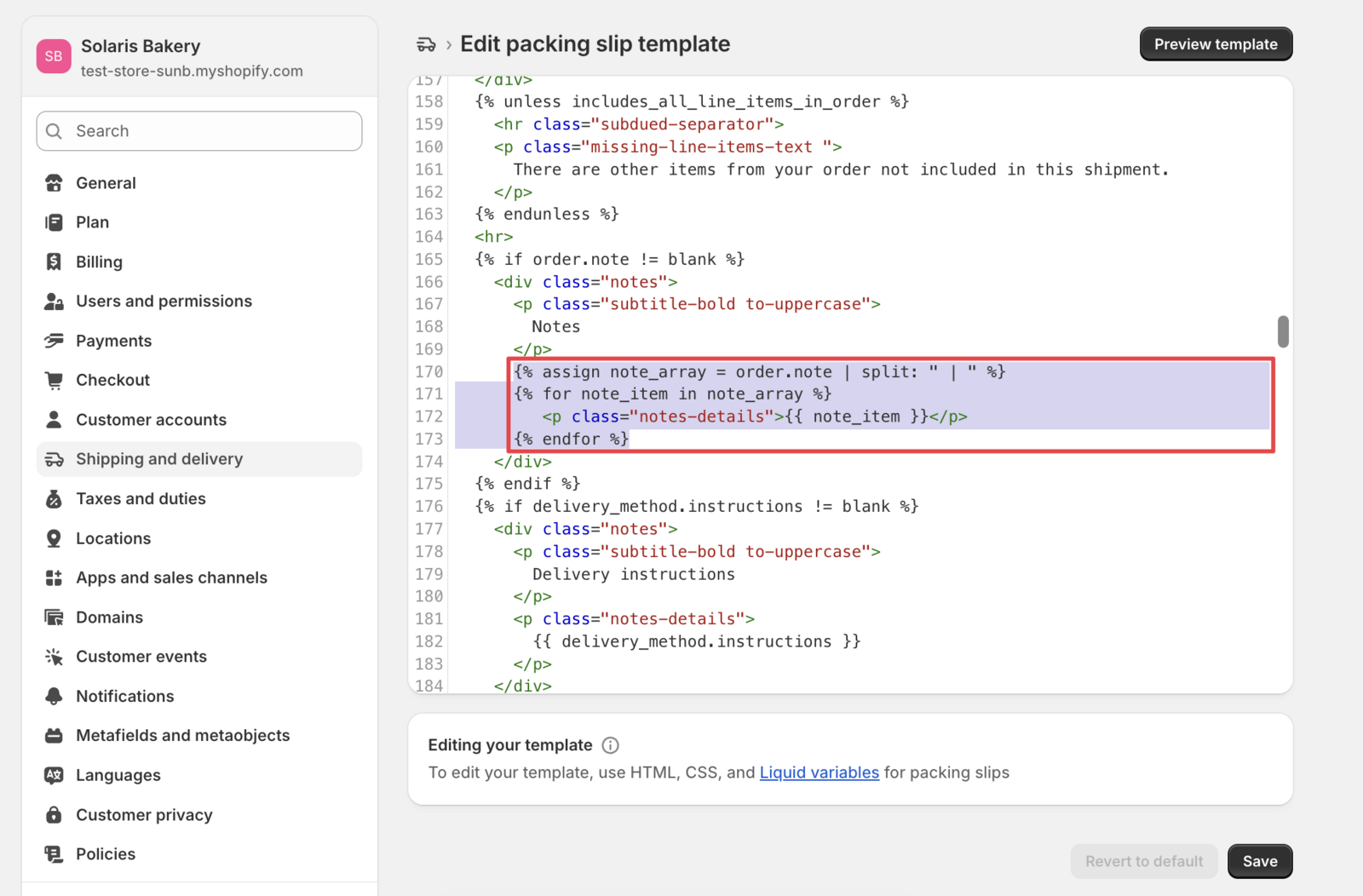
That’s it! Your packaging slips will now display the delivery date and time information clearly.
Translate Date/Time Labels (Optional)
Customize the display language for your packaging slips.
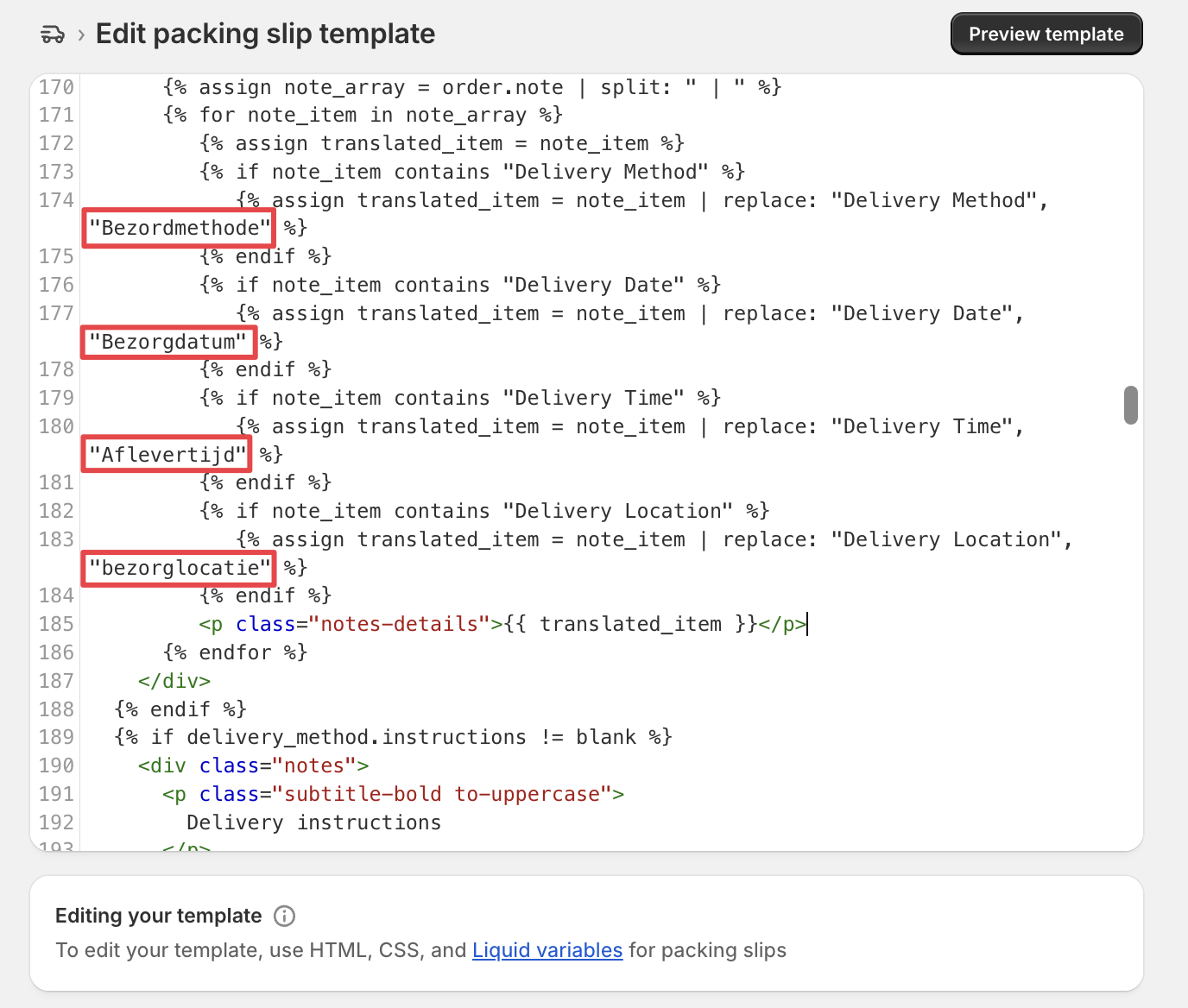
Replace the formatting code from Step 3 with this translation-ready version:
{% assign note_array = order.note | split: " | " %}
{% for note_item in note_array %}
   {% assign translated_item = note_item %}
   {% if note_item contains "Delivery Method" %}
      {% assign translated_item = note_item | replace: "Delivery Method", "Bezordmethode" %}
   {% endif %}
   {% if note_item contains "Delivery Date" %}
      {% assign translated_item = note_item | replace: "Delivery Date", "Bezorgdatum" %}
   {% endif %}
   {% if note_item contains "Delivery Time" %}
      {% assign translated_item = note_item | replace: "Delivery Time", "Aflevertijd" %}
   {% endif %}
   {% if note_item contains "Delivery Location" %}
      {% assign translated_item = note_item | replace: "Delivery Location", "bezorglocatie" %}
   {% endif %}
   <p class="notes-details">{{ translated_item }}</p>
{% endfor %}
Important: Replace the Dutch translations above with your preferred language terms. For example, for Spanish: “Método de entrega,” “Fecha de entrega,” “Hora de entrega,” “Ubicación de entrega.”
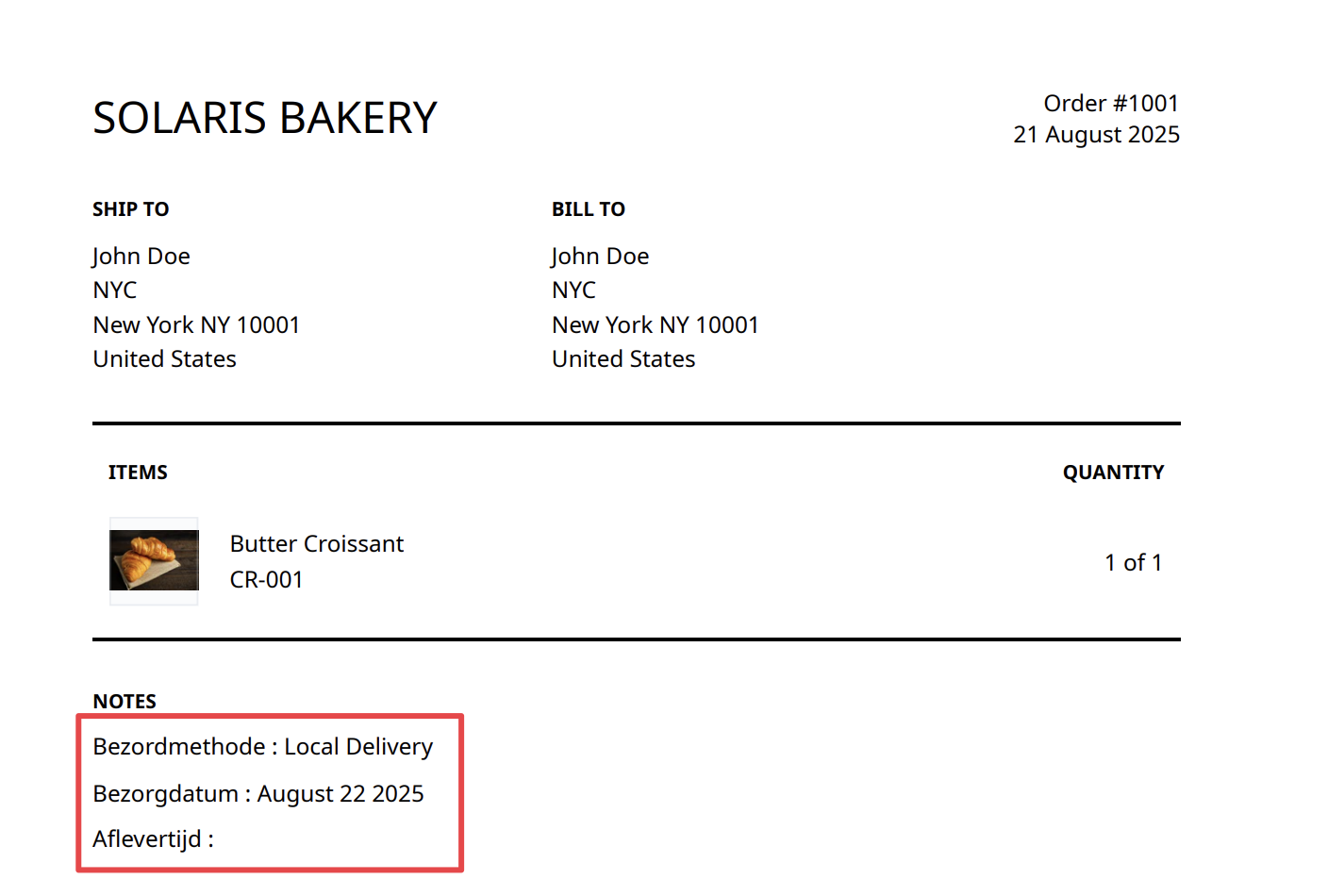
Your translated packaging slip will display like this in the case above:
Advanced Method with Order Printer Pro (V1 Widget Only)
This method uses cart attributes (attributes["Delivery Date"]) and only works with the V1 widget. If you’re on V2, use the Quick Setup Method above.
Use Order Printer Pro app for enhanced customization options and professional layout.
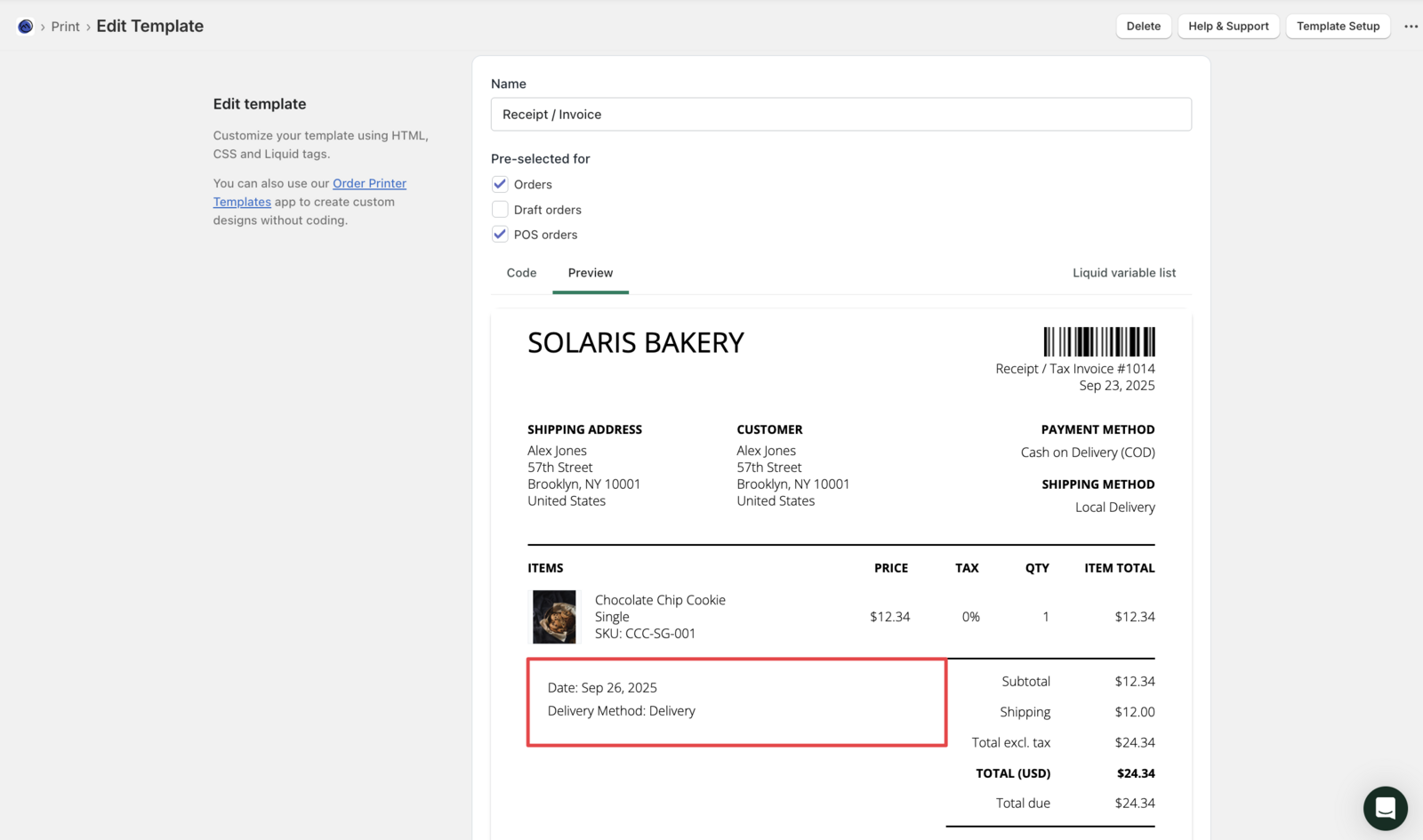
This method requires the Order Printer Pro app and creates a more professional, layout for your delivery information.
Add this code snippet to your packaging slip template:
{% if attributes["Delivery Date"] %}
   <div style="border: 1px solid black; padding: 1.5em; margin: 0 0 1.5em 0;">
      <p>Date: {{ attributes["Delivery Date"] }}</p>
      {% if attributes["Delivery Time"] %}
         <p>Time: {{ attributes["Delivery Time"] }}</p>
      {% endif %}
      {% if attributes["Delivery Method"] %}
         <p>Delivery Method: {{ attributes["Delivery Method"] }}</p>
      {% endif %}
   </div>
{% endif %}
Related Articles
Was this article helpful?
Thanks for your feedback!