
 Store Pickup
Store Pickup: Product Override
Updated June 12, 2026
Use Product Override to set custom lead times and availability rules for individual products in your store pickup workflow.
What is Product Override?
Product Override lets you apply different preparation times and availability rules to specific products for store pickup. Use it to manage products that need more or less time to prepare, or to control when certain products can be ordered for pickup.
Why use Product Override?
- Set flexible lead times for products with different preparation needs
- Control product availability for special dates or limited-time offers
- Prevent pickup orders for specific products on certain dates
How to set up Product Override
Step 1: Open Product Override settings
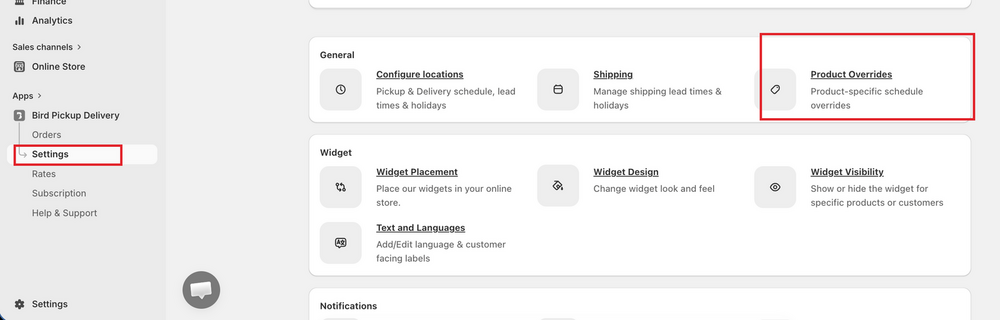
- Go to Bird App Settings > Product Overrides.
Step 2: Add a new override
- Click Add Override to open the Product Override Settings page.
Step 3: Choose applicability
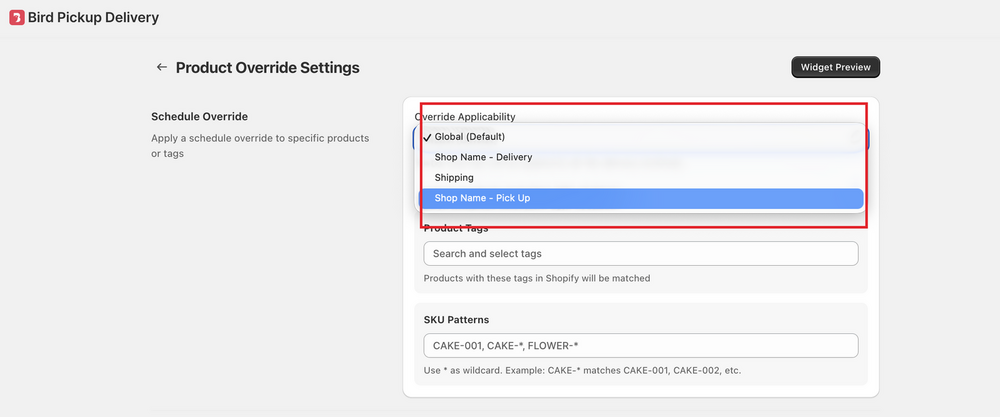
- From Override Applicability, select the pickup location this override applies to.
- If you have multiple locations, pick the specific one. Choose Global (Default) to apply across all pickup locations.
Step 4: Target the products
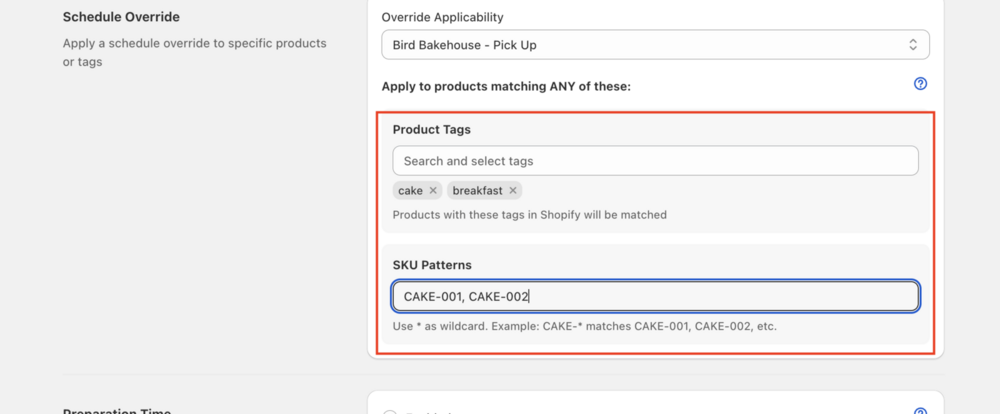
- Under Apply to products matching ANY of these, add Product Tags and/or SKU Patterns for the products you want to override.
- Use
*as a wildcard. Example:CAKE-*matchesCAKE-001,CAKE-002, etc.
Step 5: Set preparation time
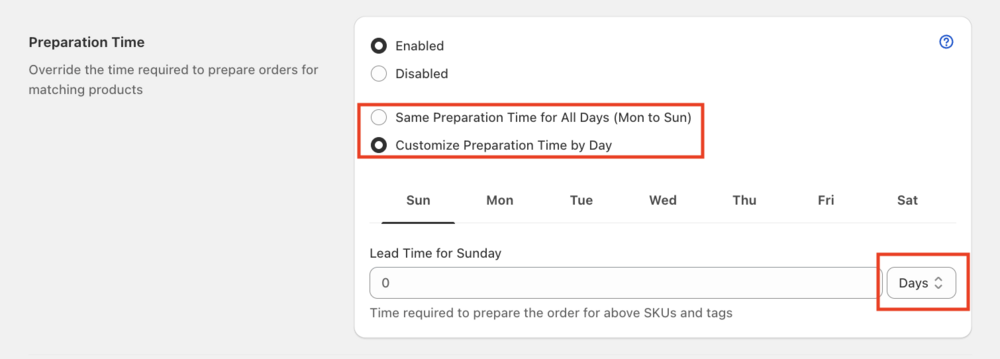
- Set Preparation Time to Enabled (or leave Disabled to inherit the default).
- Choose Same Preparation Time for All Days (Mon to Sun) or Customize Preparation Time by Day.
- Enter the Lead Time in days, hours, or minutes per day.
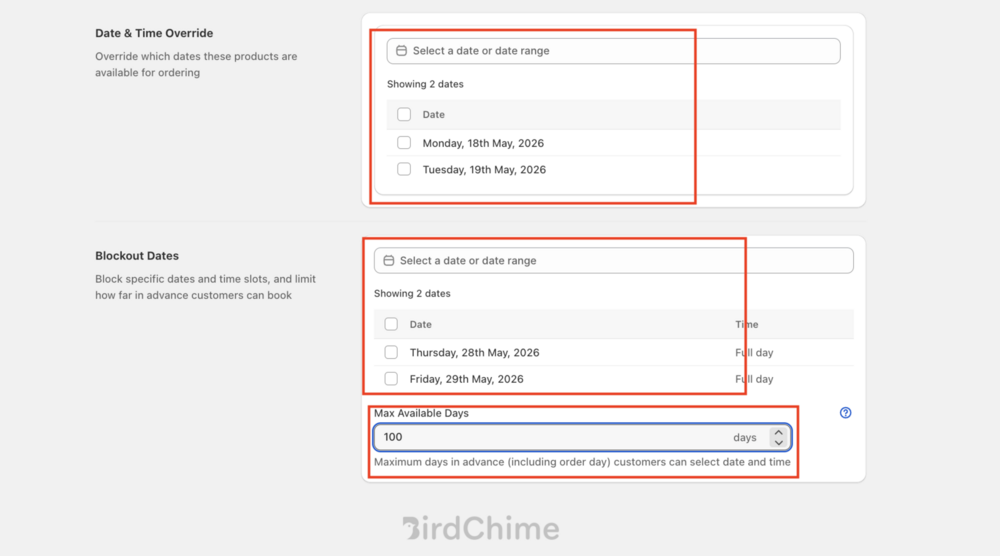
Step 6: Configure product-based availability
- Use Date & Time Override to make products orderable for pickup only on selected dates.
- Use Blockout Dates to prevent pickup orders for products on specific dates.
- Use Max Available Days to cap how far in advance customers can book.
Step 7: Save and preview
- Click Save to apply your changes.
- Click Widget Preview to see how the widget looks with your new settings.
Key notes and best practices
- You can create multiple overrides for different SKUs or tags.
- If a cart contains products with different overrides, the widget shows only the common available dates.
- If a day is disabled in your main Availability Settings, it cannot be enabled through Product Override.
Related Articles
Was this article helpful?
Thanks for your feedback!