
 Widget and Design
How to Control Widget Visibility by Product or Customer
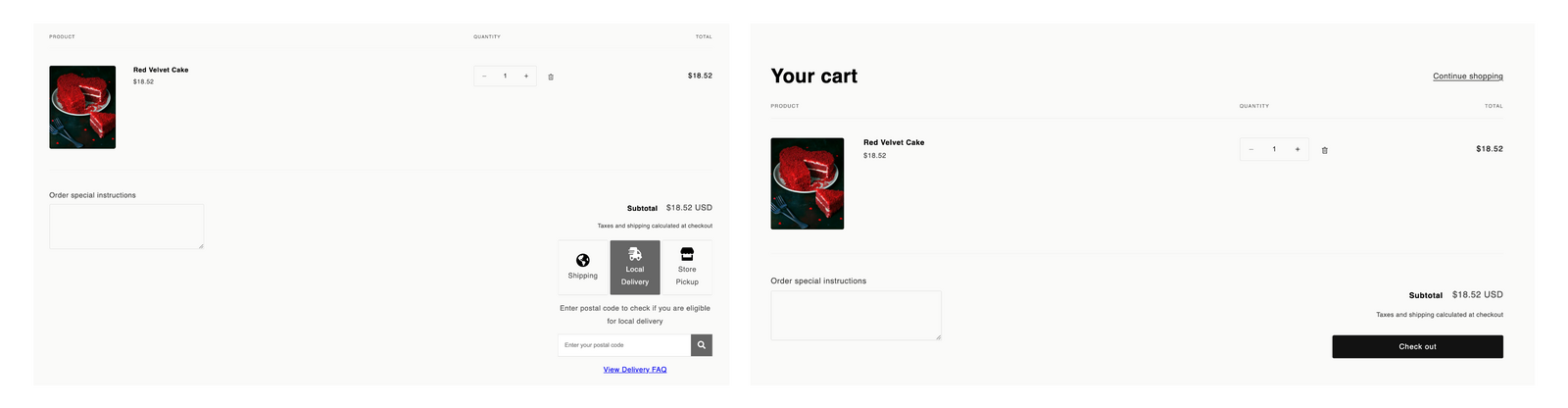
Control which products and customers see the Bird Pickup & Delivery widget in your cart and checkout.
Hide the widget for digital products like gift cards. Control visibility for wholesale customers. Show it only for specific product categories or customer types. Use product tags, customer tags, or both for precise control.
Before You Start
Complete these prerequisites before configuring widget visibility:
- Tag your products in Shopify: Go to Products > Select Product > Tags and add relevant tags (e.g., “giftcard”, “digital”, “wholesale”)
- Tag your customers in Shopify: Go to Customers > Select Customer > Tags and add customer tags (e.g., “wholesale”, “b2b”, “local”)
- Verify tag spelling: Tags are case-sensitive - ensure exact spelling matches between Shopify and Bird App settings
Need help tagging? See our How to Bulk Add Tags to Products in Shopify guide for efficient setup.
Critical: Mixed Cart Behavior
Important limitation to understand before configuring:
Mixed carts behave differently with widget visibility rules. The widget shows if ANY cart product has no hide rules, even if other products have hide rules applied.
Example: If you hide the widget for “giftcard” products but a customer adds both a “giftcard” and a “shirt” to their cart, the widget will still appear because “shirt” has no hide rules.
To ensure widget hides in mixed carts, apply hide rules to ALL products that should not show the widget, or use “Only Show Widget” rules instead of “Hide Widget” rules.
Configure Widget Visibility
Set up precise widget display rules using product and customer tags.
Step 1: Open Widget Visibility
- Navigate to Bird App Settings > Widget Visibility
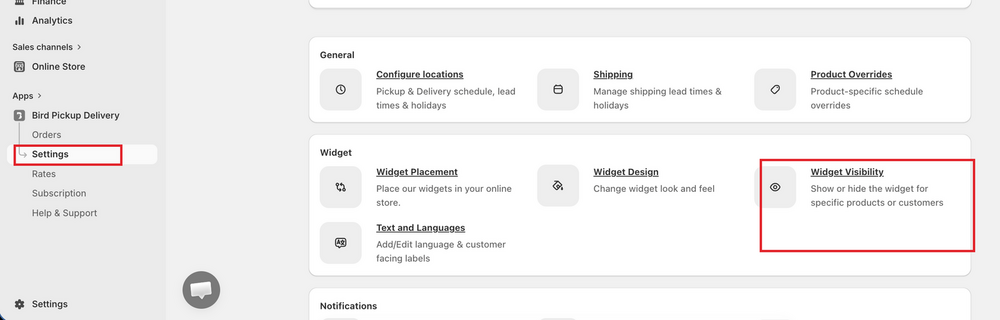
- Select Conditionally show the widget
Choosing Always show the widget keeps the widget visible for every product and customer. Detail fields appear only when Conditionally show the widget is selected.
Step 2: Choose Control Method
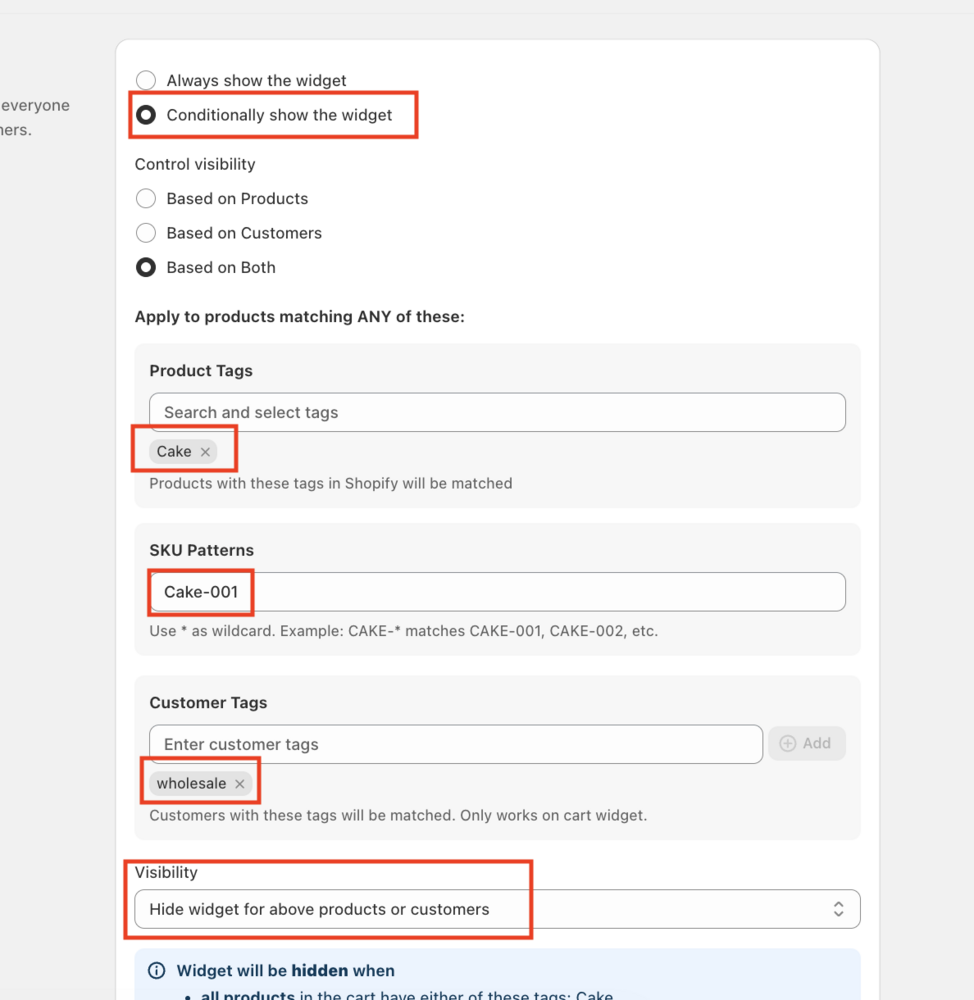
Under Control visibility, select one of three options:
Option 1: Based on Products
Control widget visibility using product tags or SKUs.
- Enter Product Tags (e.g., “giftcard”) and/or SKU (e.g.,
GIFT-*) - Set Visibility to Hide widget for above products or Only show widget for above products
Option 2: Based on Customers
Control widget visibility using customer tags.
- Enter customer tags (e.g., “wholesale”, “b2b”) under Customer Tags
- Set Visibility to Hide widget for above customers or Only show widget for above customers
Option 3: Based on Both
Combine product and customer tags for precise control.
- Enter both product tags/SKUs and customer tags
- Widget shows or hides only when both conditions match
- Example: Show widget only for “perishable” products bought by “local” customers
Step 3: Save your changes
- Click Save to apply your configuration
That’s it! Your widget now displays according to your product and customer rules.
Test Your Setup
Verify your configuration works correctly before going live:
- Test with tagged products: Add products with your configured tags to cart
- Test with mixed carts: Add both tagged and untagged products together
- Test customer rules: Log in as a customer with configured tags
- Use Widget Preview: Test different scenarios using the preview feature
Pro Tip: Test during low-traffic hours to avoid disrupting real customers.
Important Behavior Notes
Customer-Only Limitations
Customer-based rules only affect the cart widget:
- Customer tags control widget visibility on the cart page only
- For Shopify Plus stores: Customer tags don’t affect the checkout extension behavior
- For non-Plus Shopify stores: Customer tags only control the cart widget, since no checkout widget exists
Related Articles
Was this article helpful?
Thanks for your feedback!