
 Widget and Design
How to Add Custom Links Below Your Widget
B
Written by Bird Pickup & Delivery
Updated September 29, 2026
Add custom links below your widget to provide customers with quick access to support, contact information, or additional resources.
How to Add Links Below the Widget
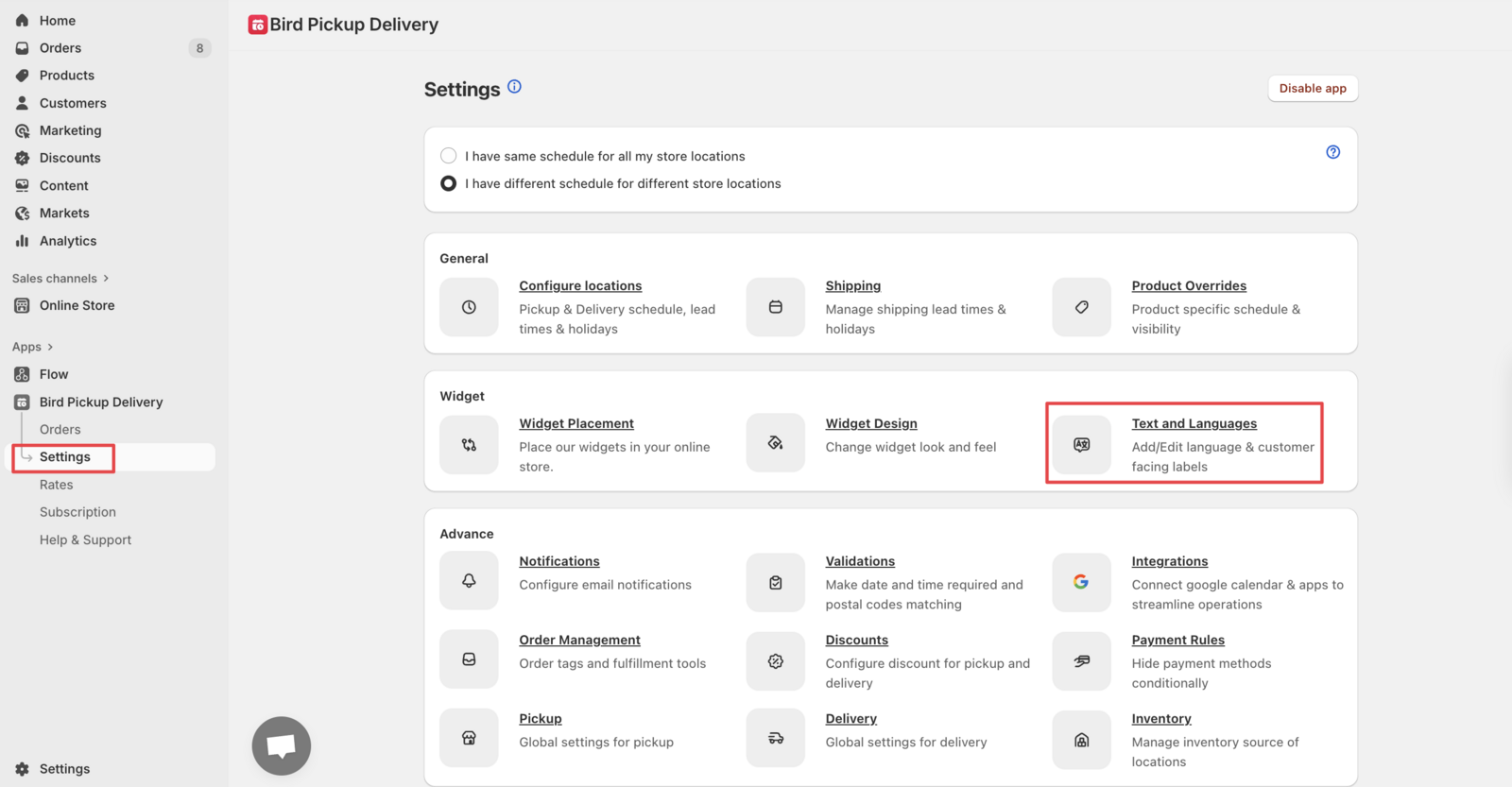
Step 1: Open Text and Languages
- Go to Bird Settings
- Click the Text and languages tile. The page opens directly on your default language.
- If you have more than one language, pick the one you want from the language dropdown next to the page title.
Step 2: Find the Widget Footer Field
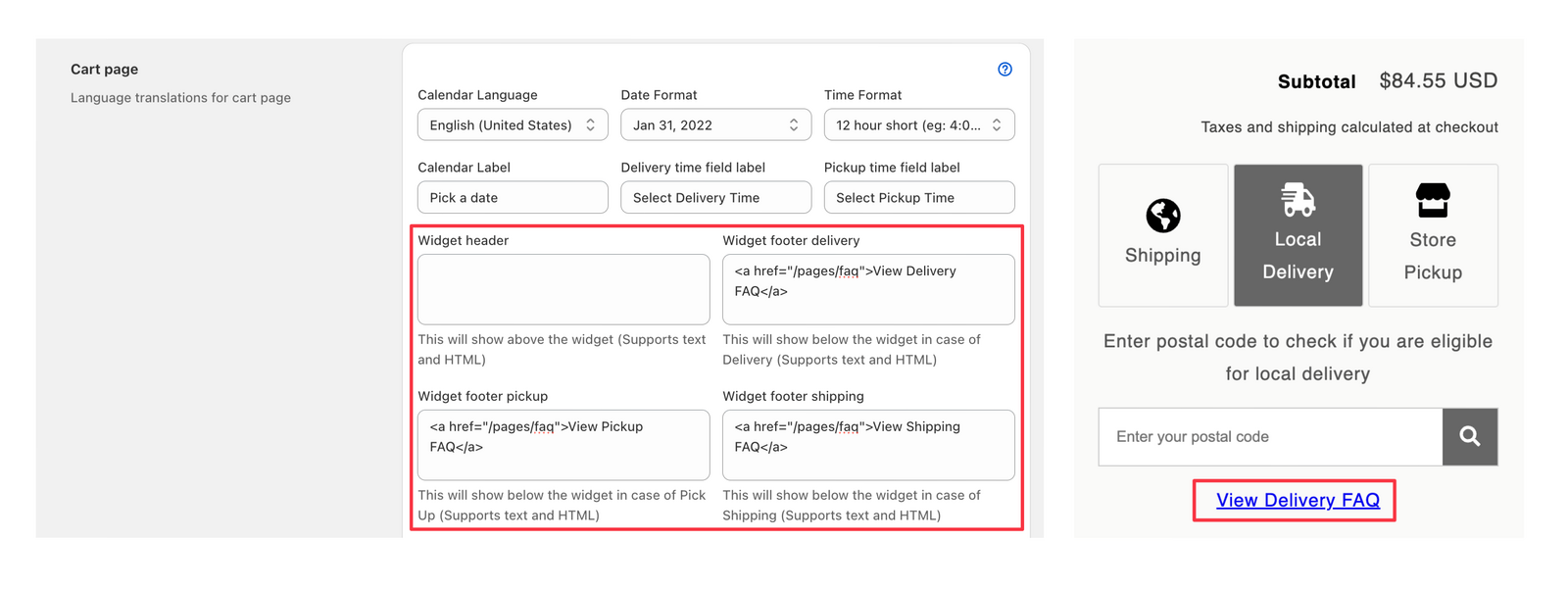
- In the Cart page section, find the field for the method you want:
- Widget footer delivery (for local delivery orders)
- Widget footer pickup (for pickup orders)
- Widget footer shipping (for shipping orders)
- This field accepts HTML code and will display below your widget
Step 3: Add HTML Code
Insert the following HTML code in the widget footer field:
<a href="https://help.birdchime.com">Contact Us</a>
Step 4: Customize Your Link
-
Replace the URL: Change
https://help.birdchime.comto your desired link URL - Update the text: Change “Contact Us” to match your link’s purpose
Example customizations:
<!-- WhatsApp Support Link -->
<a href="https://wa.me/1234567890">WhatsApp Support</a>

<!-- Email Contact Link -->
<a href="mailto:[email protected]">Email Support</a>

<!-- FAQ Page Link -->
<a href="/pages/faq">View FAQ</a>
Common Use Cases
- Customer Support: Link to live chat, help desk, or contact forms
- Information Resources: FAQ pages, delivery policies, or store information
- Social Media: WhatsApp business chat, Facebook messenger, or Instagram
- Order Tracking: Link to order status or tracking pages
Related Articles
Was this article helpful?
Thanks for your feedback!