
 Rates
Rates
How to Set Up Discounts Specific to Delivery Methods and Location
Bird Pickup & Delivery lets you automatically apply discounts at checkout based on the delivery method a customer selects — pickup, local delivery, or shipping. You can target discounts by location, day of week, specific dates, time of day, zip code, minimum order value, or product collection, and control how multiple discounts stack.
Ways You Can Offer Discounts
| Discount type | Example | How to set it up |
|---|---|---|
| By delivery method | 10% off all pickup orders | Set method to Pick Up, apply to All Locations |
| By location | 15% off delivery from your USA Main store | Set method to Local Delivery, select the location |
| By day of week | 10% off Saturday & Sunday pickups | Add a weekday condition (Growth plan) |
| By specific dates | Free delivery on Black Friday & Cyber Monday | Add a specific dates condition (Growth plan) |
| By time of day | 10% off pickup orders after 14:00 | Add a time range condition (Growth plan) |
| By zip code | 15% off delivery to zip code 11219 | Add a zip code condition (Growth plan) |
| By minimum order | 10% off pickup on orders over $160 | Set a minimum order value |
| By collection | 5% off wedding bouquets on delivery orders | Set Products to a collection (Growth plan) |
| Combine conditions | 10% off Saturday & Sunday pickups after 14:00 with $160 minimum order | Stack multiple conditions on one discount |
Before You Start
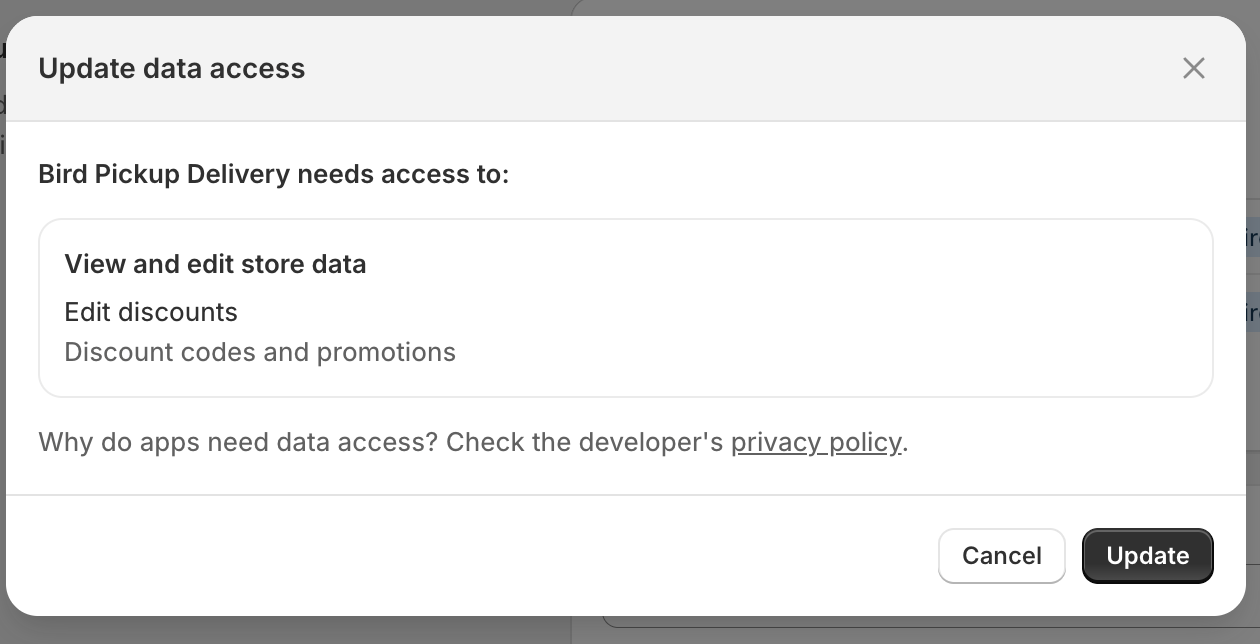
When you first open the Discount settings page, Bird may ask you to approve additional data access permissions. Click Update to grant the app permission to manage discounts on your behalf.
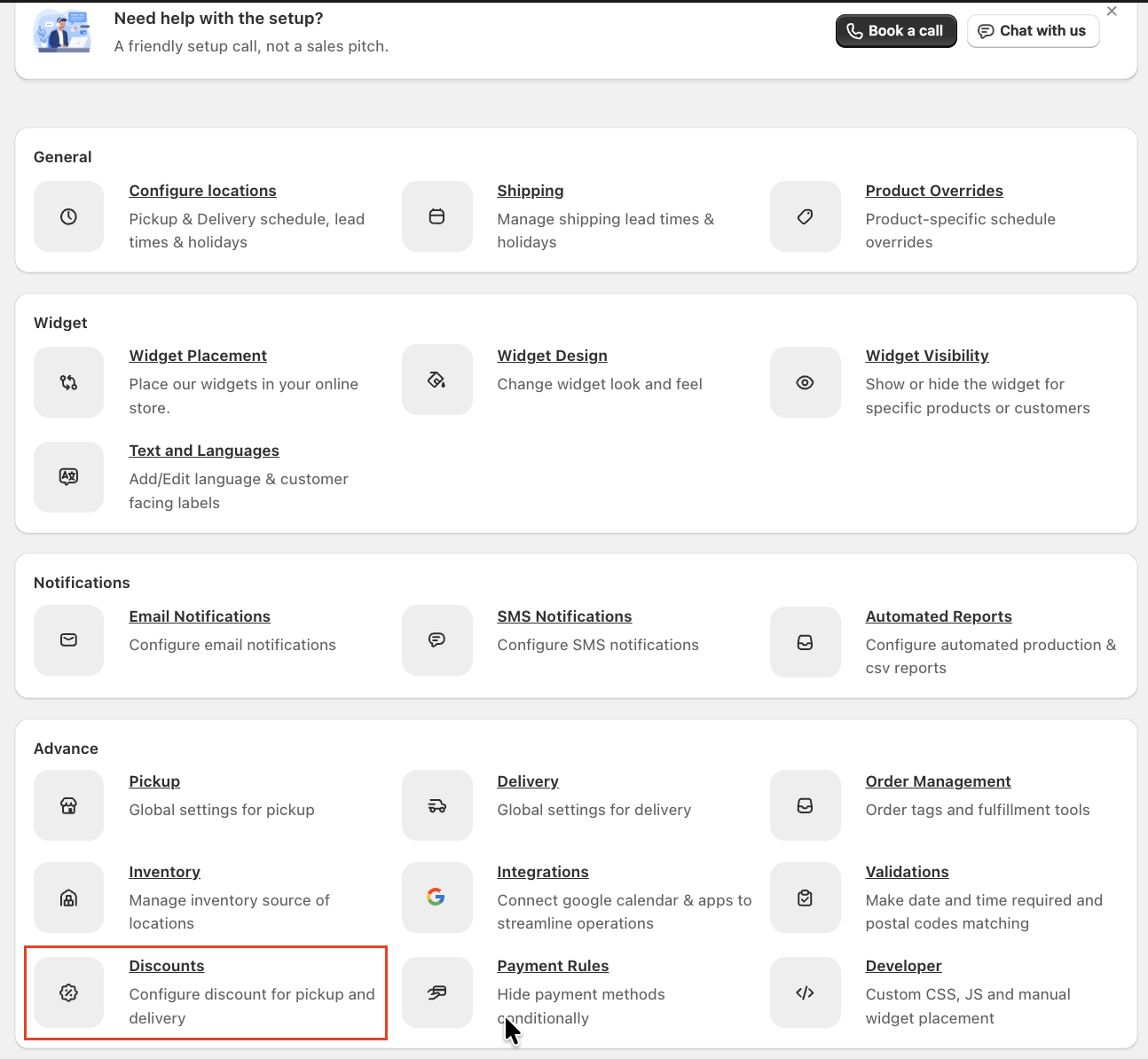
How to Create a Discount
- Open Bird App → Settings → Discounts
- Click Add
- Choose a Discount source:
- Create in Bird — percentage or fixed amount off, with full control over location, conditions, and minimum order value
- Create in Shopify — link an existing Shopify discount code to a delivery method
- Select the Delivery method (Pick Up, Local Delivery, or Shipping)
- Complete the remaining fields based on your source (see below)
- Click Create discount (or Save discount code if using a Shopify discount source)
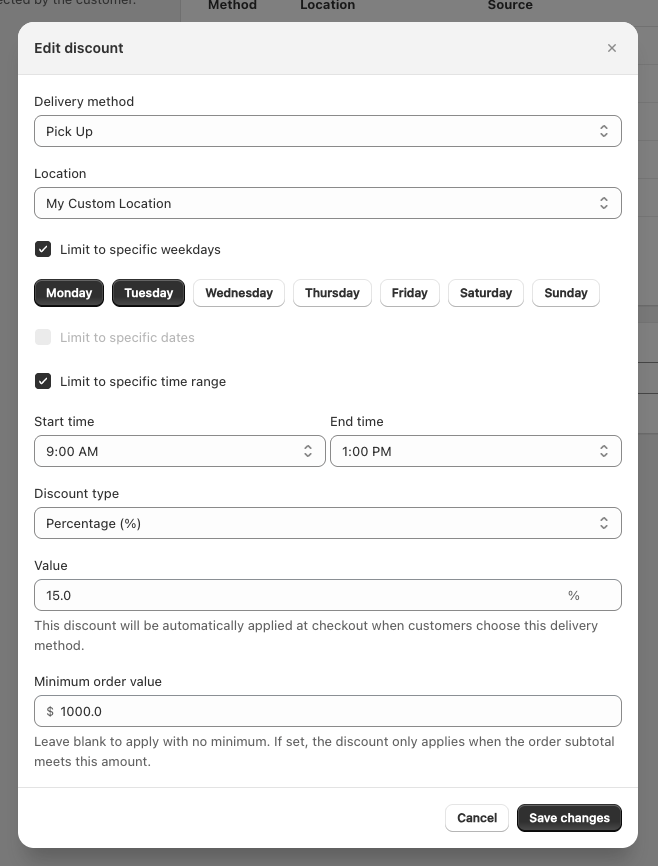
Bird Discount Fields
| Field | Description |
|---|---|
| Location | A specific store location or All Locations |
| Discount type | Percentage (%) or Fixed amount ($) |
| Value | e.g., 10 for 10% off or $10 off |
| Products | Optional — limit the discount to specific collections (see below) |
| Minimum order value | Optional — discount only applies when the cart subtotal meets this threshold |
| Conditions | Optional — restrict when the discount applies (see below) |
Shopify Discount Fields
| Field | Description |
|---|---|
| Discount code | Must match an active discount code in your Shopify Admin |
| Discount type | Set in Shopify — percentage, fixed amount, or free shipping |
| Combinability | Set in Shopify — controls whether the discount combines with other discounts |
| Customer eligibility | Set in Shopify — all customers, specific segments, or specific customers |
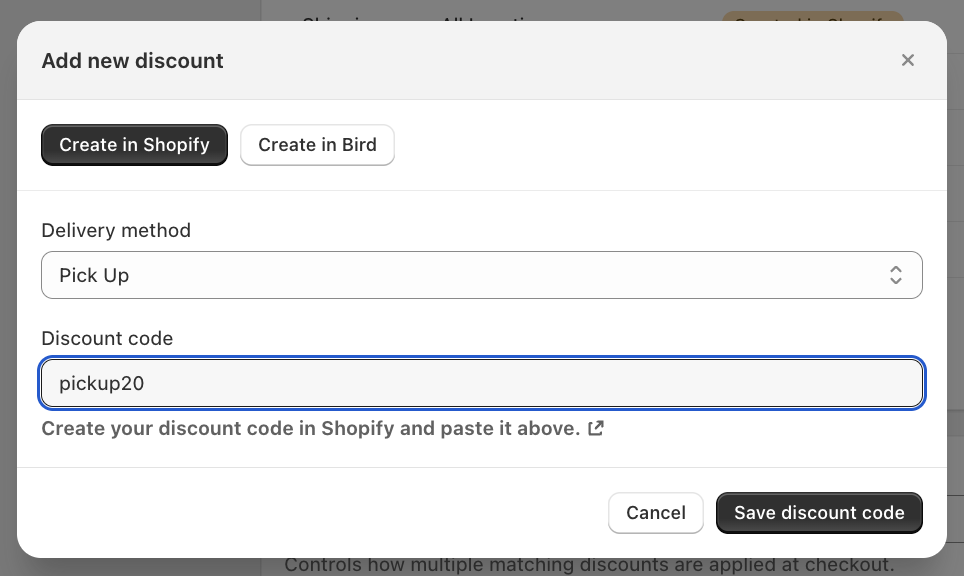
Bird applies the linked Shopify discount code as-is — all type, combinability, and eligibility rules you set in Shopify Admin are respected. To create a discount code, go to Shopify Admin → Discounts and create a new discount with the conditions and value you want. Copy the exact code name and paste it in the Bird app.
Discount Conditions
Conditions let you control when a discount applies. You can add one or more conditions to any Bird Discount. Available on the Growth plan or higher.
By Day of Week
Offer discounts on specific days — great for driving orders on slower days.
- Check Weekdays
- Select the days (Mon–Sun)
By Specific Dates
Run promotions on exact calendar dates — holidays, seasonal sales, or slow months when you need a revenue boost. Many merchants see order volume drop in January, February, and August as customers tighten budgets or go on vacation. Scheduling discounts during these stretches — like “free delivery all January” or “10% off pickup through August” — keeps orders flowing when foot traffic slows, especially since customers still order delivery and pickup even when they’re not visiting stores in person.
- Check Specific Dates
- Add up to 60 dates using the date picker
Weekday and specific dates conditions are mutually exclusive — use one or the other on the same discount.
By Time of Day
Fill quiet hours by offering discounts during specific time windows. Most merchants see a dead zone between the lunch rush and dinner — roughly 2:00 PM to 5:00 PM — when staff is idle and delivery capacity goes unused. A time-based discount like “10% off pickup after 14:00” targets a different customer segment (work-from-home, early dinners) without eating into your peak-hour margins.
- Check Time Range
- Enter Start time and End time in 24-hour format (HH:MM)
Time range can be combined with weekday or date conditions. For example, “10% off pickup on Saturdays & Sundays after 14:00.”
By Zip Code (Delivery Only)
Target discounts to specific delivery areas — useful when you’re trying to grow orders in neighborhoods that are farther away or where customers hesitate because of higher delivery costs. Offering a discount to select zip codes — like “15% off delivery to 11219” — can help you break into new zones without lowering prices for areas that already order regularly.
- Check Zip Codes
- Enter zip codes separated by commas (up to 200)
Wildcard matching is supported — 1000* matches all zip codes starting with 1000 (e.g., 10001, 10002, 10009).
By Collection
Limit a discount to specific product collections — useful when you want different discount rates for different parts of your catalog. For example, 5% off wedding bouquets and 10% off everything else, both on delivery orders.
- In the Products field, choose one of:
| Choice | What it does |
|---|---|
| All products | The discount applies to every product in the order (default) |
| Only products in these collections | The discount applies only to products in the collections you select |
| All products except these collections | The discount applies to every product except those in the collections you select |
- If you chose either collection option, click Browse to pick one or more Shopify collections (up to 20 per discount)
Worked Example
Say you run a flower shop and want 5% off wedding bouquets and 10% off everything else, both for local delivery. Set this up as two discounts:
- Discount A — Local Delivery, 5%, Products set to Only products in these collections, with your Wedding Bouquets collection selected
- Discount B — Local Delivery, 10%, Products set to All products except these collections, with the same Wedding Bouquets collection selected
On a mixed cart — a wedding bouquet and a box of chocolates — the bouquet (in Wedding Bouquets) gets 5% off and the chocolates get 10% off, in the same order.
Both discounts apply in any Discount Application Mode, because they cover different products and never compete for the same one. Mode only picks a winner when two discounts cover the same product — see Stacking.
Collection Limits
- Up to 2 discounts per delivery method can use collections. Discounts set to “All products” don’t count against this limit.
- Once any discount for a delivery method uses collections, none of that method’s discounts apply to orders with more than 30 different products — including the ones set to “All products”. The order goes through normally, it just won’t have a Bird discount applied. Each product or variant in the cart counts once, regardless of quantity (10 units of the same item = 1, but 2 sizes of the same product = 2).
- A delivery method using collections can hold at most 10 discounts in total. Adding an 11th, or scoping a discount on a method that already has 10, is refused with “Too many discounts to use collections”.
- Gift cards never receive a Bird discount, regardless of collection settings.
Multiple Discounts and Stacking
You can create multiple discounts for the same delivery method — for example, different discounts for different locations or conditions. When multiple discounts match, the Discount Application Mode controls what happens:
| Mode | Behavior |
|---|---|
| Maximum (default) | Only the highest-value matching discount applies |
| Minimum | Only the lowest-value matching discount applies |
| All | All matching discounts stack together |
Change this setting on the Discounts page. It applies to all Bird Discounts across your store.
Plan Requirements
| Feature | Required Plan |
|---|---|
| Automatic discounts (Bird Discounts) | Essential or higher |
| Discount conditions (weekday, date, time, zip code) | Growth or higher |
| Limiting discounts to collections | Growth or higher |
| Shopify discount codes | All plans (Free included) |
You can create up to 25 Bird Discounts per store.
If you downgrade your plan, existing discounts are preserved but conditions stop being applied until you upgrade again.
Discounts on Shopify Plus Checkout
If you’re on Shopify Plus and using the Checkout Extension, discounts are applied when the customer selects a delivery method. Here’s how the flow works:
- When a customer selects Pickup, the discount is applied immediately along with the relevant rates.
- If the customer then enters a shipping address or switches to a different delivery method, the app recalculates rates based on the new details — and the pickup discount is removed.
This is expected behavior. The discount is tied to the selected delivery method, so it updates automatically whenever the method or address changes.
Limitations
- If a customer receives a discount at checkout and goes back to the cart page, the discount code will still appear. When they proceed to checkout again with a different delivery method, the discount updates automatically.
- Zip code conditions are only available for Local Delivery.
Related Articles
Was this article helpful?
Thanks for your feedback!