
 Fleet Management
Detrack
Detrack is delivery management software for running your own drivers — dispatch, routes, proof of delivery and live tracking. Connect your Detrack account to Bird and delivery orders are sent to Detrack as jobs, with the date and time slot your customer chose.
Detrack is not a courier. Your own drivers make the delivery, so you keep your own delivery pricing — Bird does not quote Detrack at checkout.
For help with your Detrack account, drivers or routes, contact the Detrack team.
Requirements
- An active Detrack account and API key.
- Local Delivery set up, with delivery days and time slots.
- A street, city and country on every location Detrack collects from.
Connect Detrack
- Click Settings, then Integrations.
- Open the Fleet Management tab, find Detrack and open it.
- Enter your Detrack API Key and click Connect.
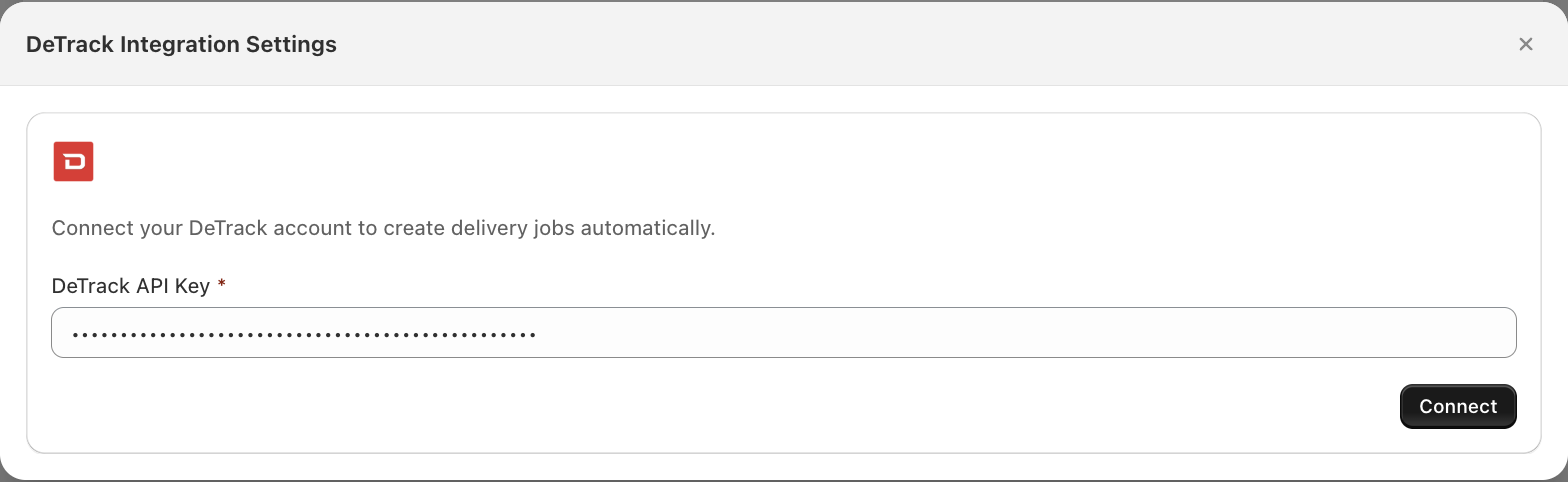
Bird checks the key with Detrack, so a wrong key is rejected here rather than at your first order. The remaining settings appear once you’re connected.
Configure settings
Notification emails
Add the emails to alert if Bird can’t send a job to Detrack. Separate them with commas.
You’re only emailed when a failure is final. Timeouts and outages are retried quietly.

Locations
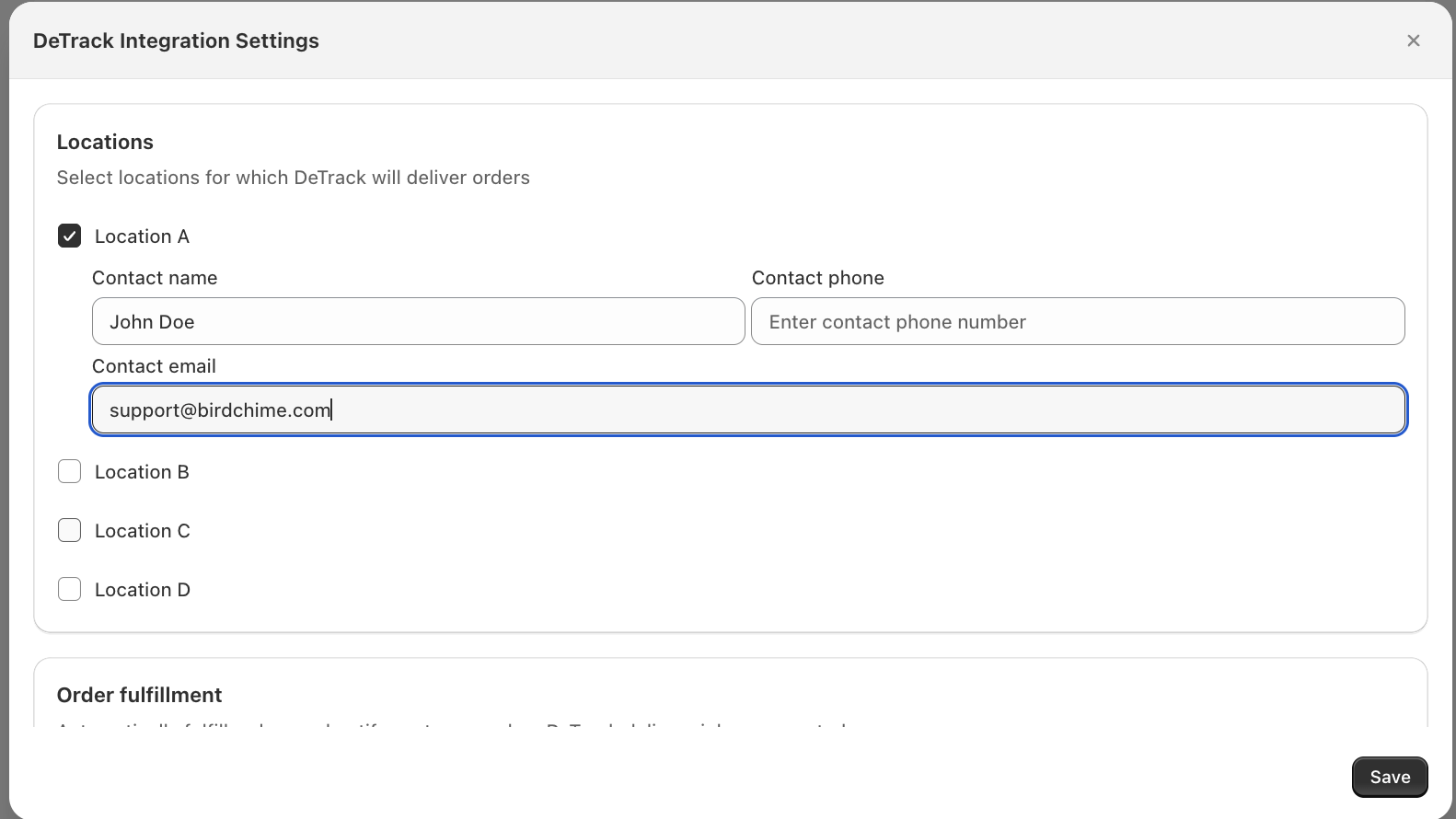
- Tick the locations Detrack delivers for. You don’t have to tick them all.
- Add a contact name, contact phone, and contact email to every ticked location. These become the job’s collection contact in Detrack, so a driver can reach someone at pickup. The email is pre-filled from your account email — change it if a different person handles pickup at that location.
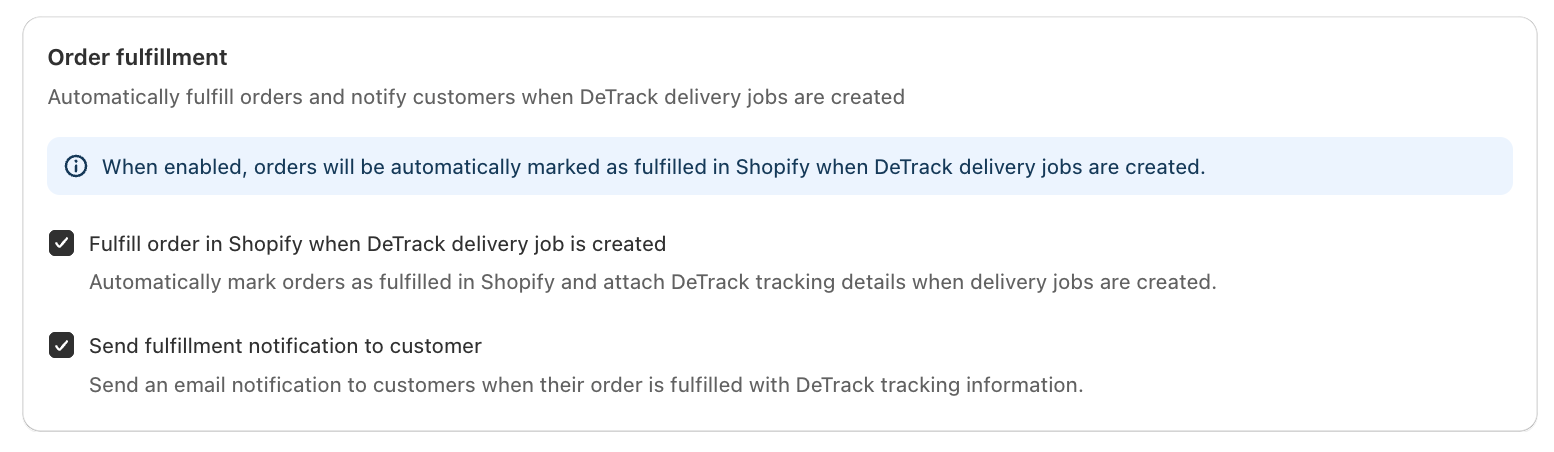
Order fulfillment
Choose whether Bird marks the order fulfilled in Shopify when the Detrack job is created, and whether your customer is emailed about it.
Click Save.
Live tracking updates (optional)
Bird checks Detrack regularly and updates your order statuses on its own, so this step is optional. Add it if you want statuses to update the moment a driver moves.
- On the Detrack card, click Webhook setup.
- Copy the Webhook URL, the Secret header name, and the Webhook secret.
- In Detrack, open your webhook settings, add the URL, then add the header and secret under Custom Headers.
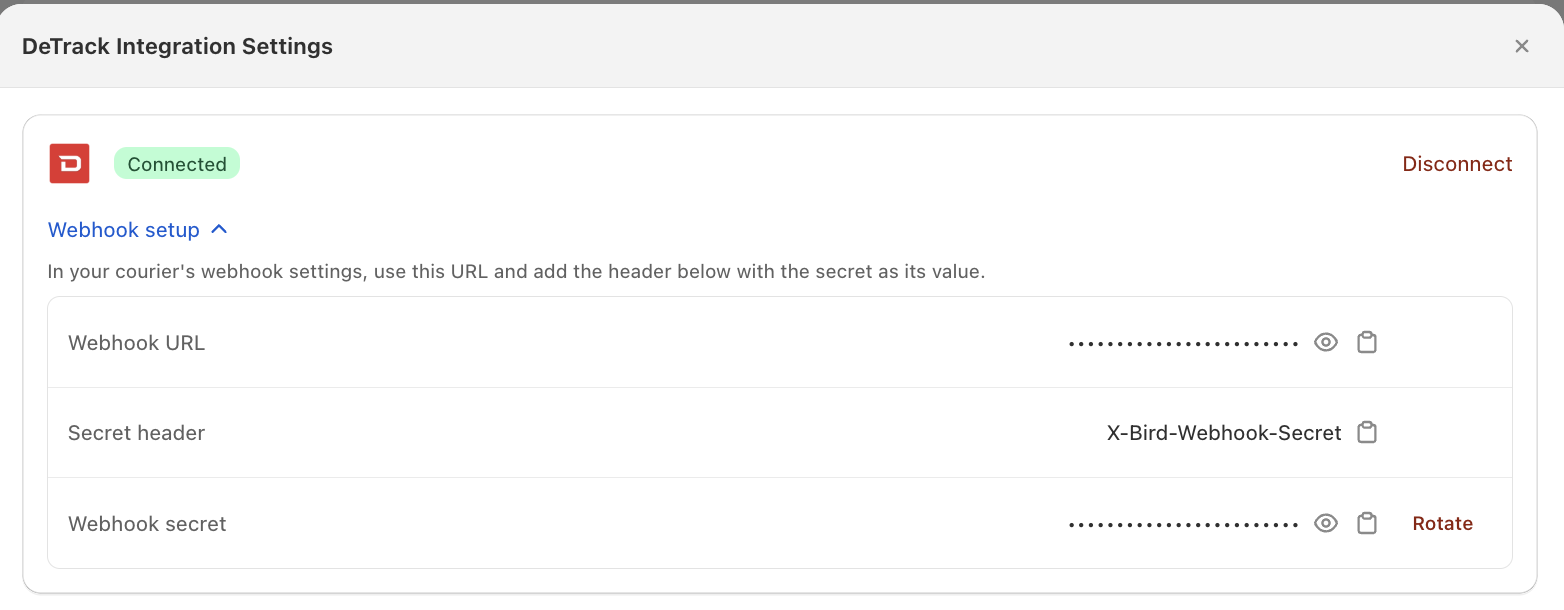
Detrack webhooks are set up inside Detrack — they can’t be registered from Bird. Detrack’s guide walks through the screens.
You can click Rotate to replace the secret at any time. The old one stops working straight away, so update it in Detrack too.
Dispatching an order
- The customer picks a delivery date and time slot.
- Mark the order Out for delivery in Bird. This is what sends it to Detrack — creating the order does not.
- The job appears in Detrack with the delivery date and time window, the customer’s address and phone, your order note as the delivery instructions, and the items.
- Assign it to a driver in Detrack as usual.
- Statuses come back to Bird as the driver progresses: out for delivery, then delivered, failed or returned.
Each job carries a tracking link from Detrack, which Bird stores on the order.
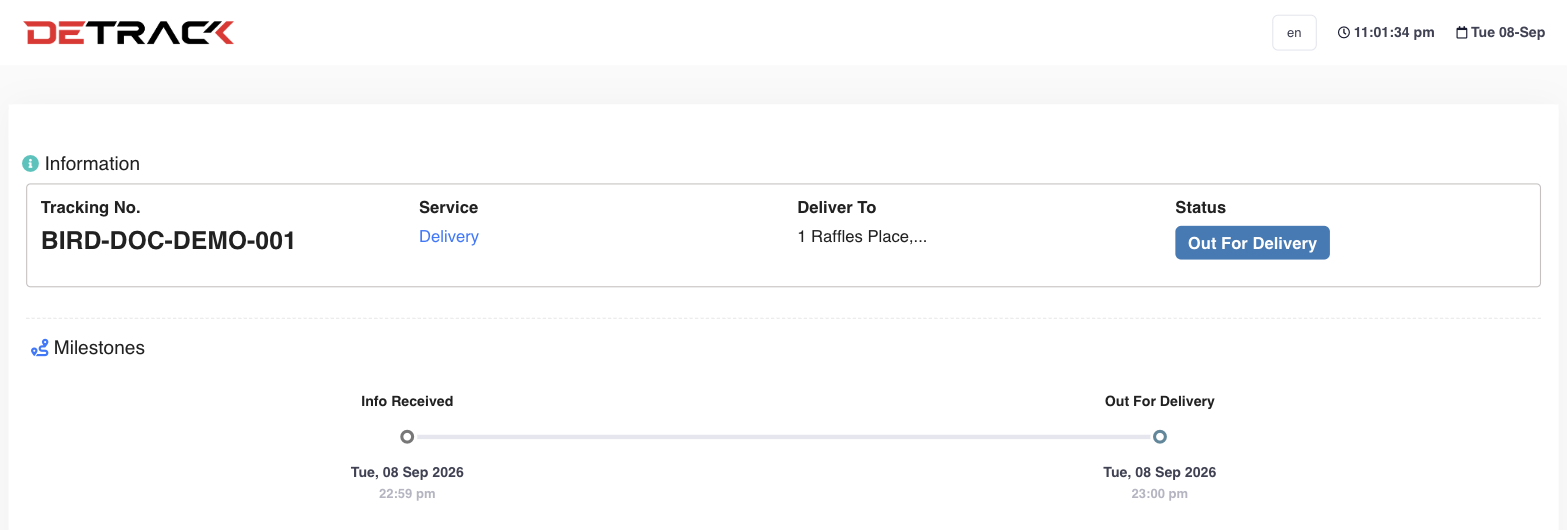
The tracking link is what the customer sees. It updates live as the order moves through Info Received, Out For Delivery, and on to Completed.
Disconnect Detrack
- Click Settings, then Integrations.
- Open the Fleet Management tab, find Detrack and open it.
- Click Disconnect and confirm.

Bird stops sending jobs right away. Jobs already in Detrack are unaffected.
Notes
- Cancelling an order in Shopify cancels the Detrack job.
- Marking the same order out for delivery twice won’t create a second job.
- Editing an order after dispatch does not update it in Detrack. Change it there, or cancel and re-dispatch.
- Jobs collect from the ticked Bird location’s address, not from a Detrack depot.
- Bird doesn’t send a parcel weight. Detrack’s weight unit is set on your Detrack account, so a figure from Bird could be read as the wrong unit.
Troubleshooting
Nothing reached Detrack. Check your notification emails — Bird emails the reason when a job fails, usually a bad delivery address or a rejected API key. If there is no email, confirm the order was marked Out for delivery in Bird, and that the order’s location is ticked in Detrack’s Locations settings.
Related Articles
Was this article helpful?
Thanks for your feedback!