
 Advanced Features
Widget Loading Issues in Dynamic Carts
Fix widget loading issues in dynamic cart environments by configuring reinitialization settings.
The Bird Pickup & Delivery widget sometimes needs reinitialization when your cart updates dynamically without page reloads. This commonly happens with cart drawers and AJAX-powered shopping carts.
Configure Widget Reinitialization
1. Open Developer Settings
In the Bird app, go to Bird Settings > Developer > Widget reload or reinitialize. See Developer Settings.
If you don’t see this section, you don’t need it: the widget reloads itself when the cart changes.
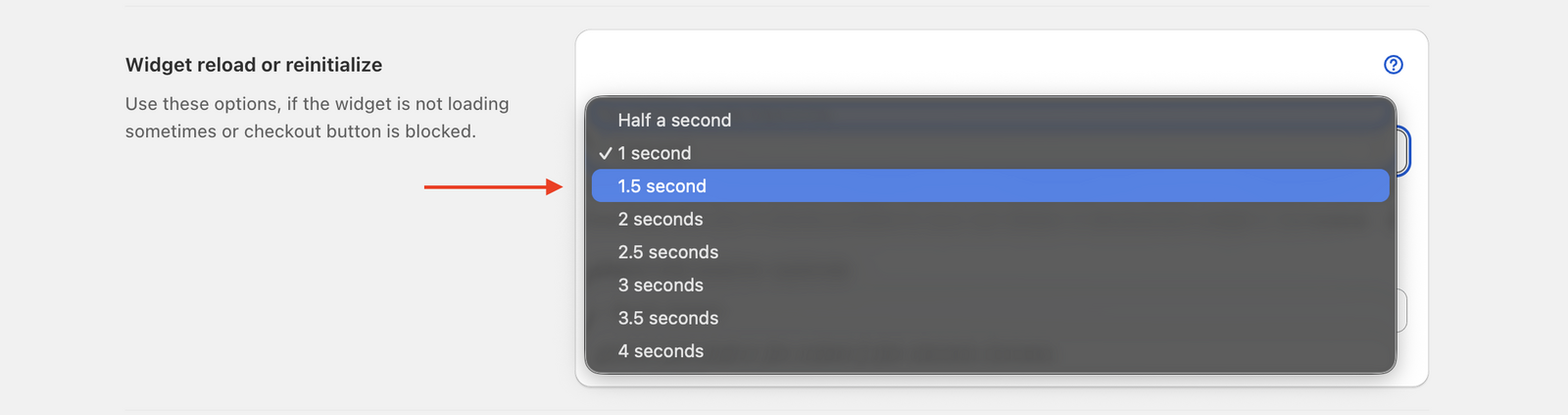
2. Set the Cart Drawer Delay
Increase Cart drawer delay (optional) so the widget loads after your cart fully renders. Bird waits this long after your cart loads before initializing the widget, preventing timing conflicts.
- Higher values give your cart more time to load
- Start with 1 second and adjust as needed
3. Set a Watch CSS Selector
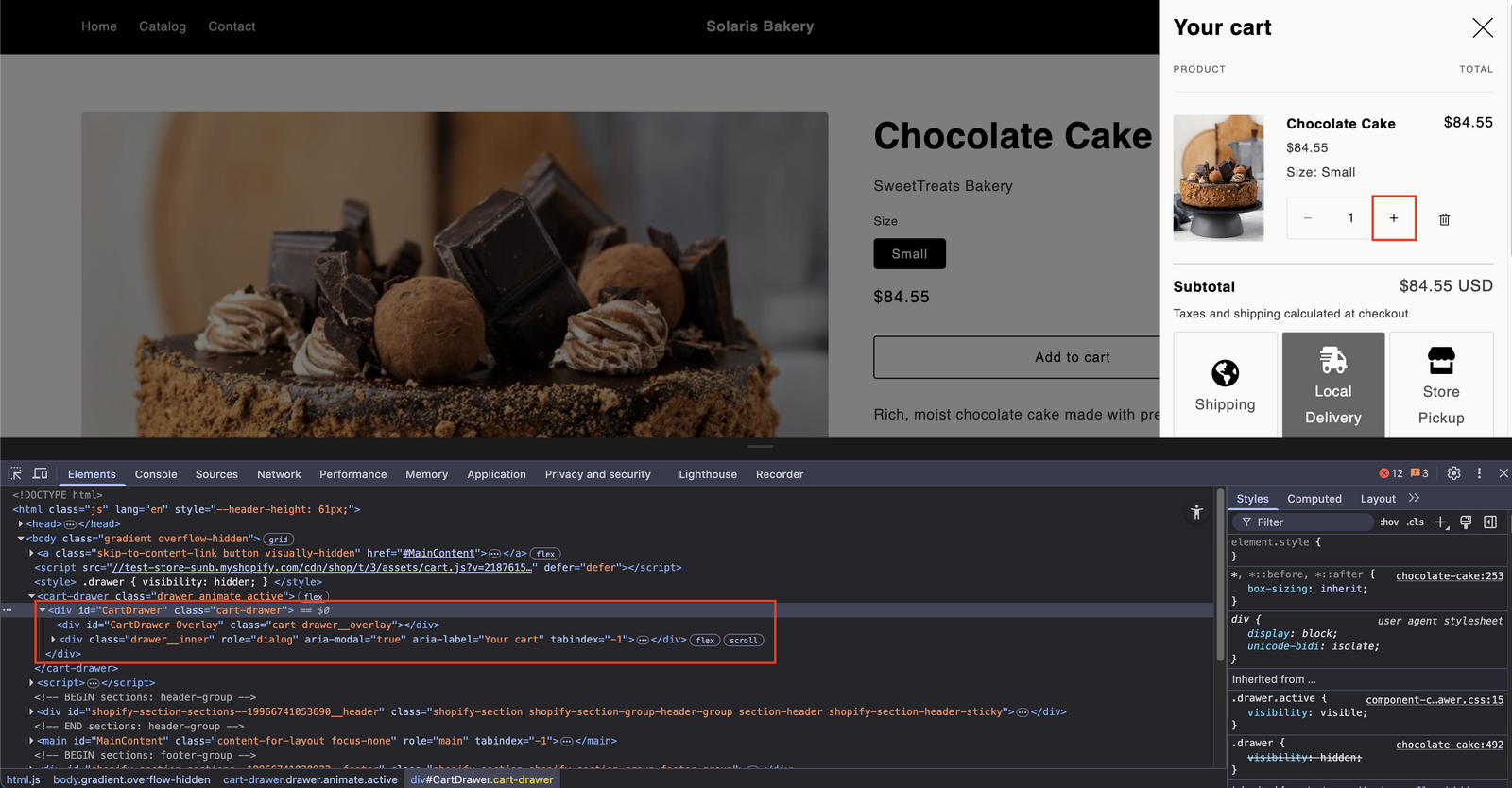
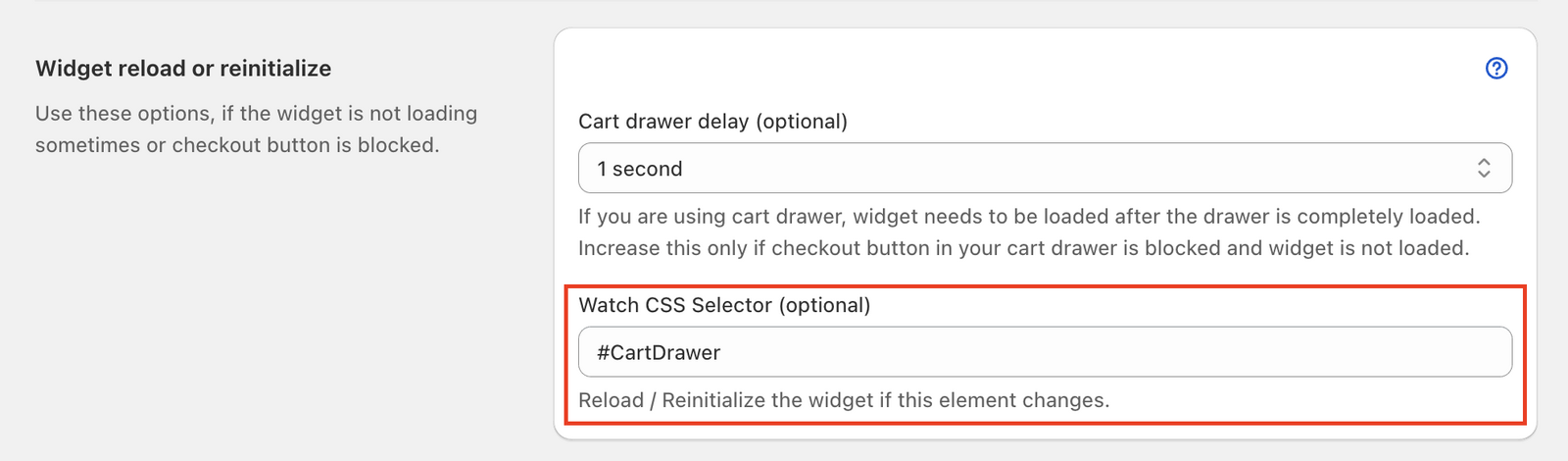
Use Watch CSS selector (optional) only if the cart drawer delay doesn’t solve your issue.
- Select a parent element that contains your cart
- The widget monitors this element for changes
- When changes occur, the widget reinitializes automatically
4. Enter CSS Selector
Specify the CSS selector for your cart’s parent element.
- Use your theme’s cart container selector
- If nothing works, enter
document.bodyas a fallback. Note: This may cause performance issues as it will watch for any change in the body.
Troubleshooting Tips
- Start with reinitialize delay first. This solves most timing issues without additional complexity.
- Use element watching sparingly. Only enable when delay settings prove insufficient.
-
Test with
document.bodyif needed. This monitors the entire page for changes as a last resort.
Related Articles
Was this article helpful?
Thanks for your feedback!