
 Last Mile Delivery
UniHop

UniHop is an on-demand courier platform covering the United States and parts of Canada. Connect your UniHop account to Bird and delivery orders are dispatched to UniHop.
For help with UniHop pricing, alcohol or tobacco shipments, or anything about your UniHop account, contact the UniHop support team.
Requirements
- A UniHop account with a payment method added under Billing
- Your UniHop API key
- A store in the United States or Canada
- Local Delivery set up, with delivery days and time slots
- A complete address on every location UniHop collects from
Connect UniHop
- Click Settings, then Integrations.
- Find UniHop and open it.
- Enter your UniHop API Key and click Connect.
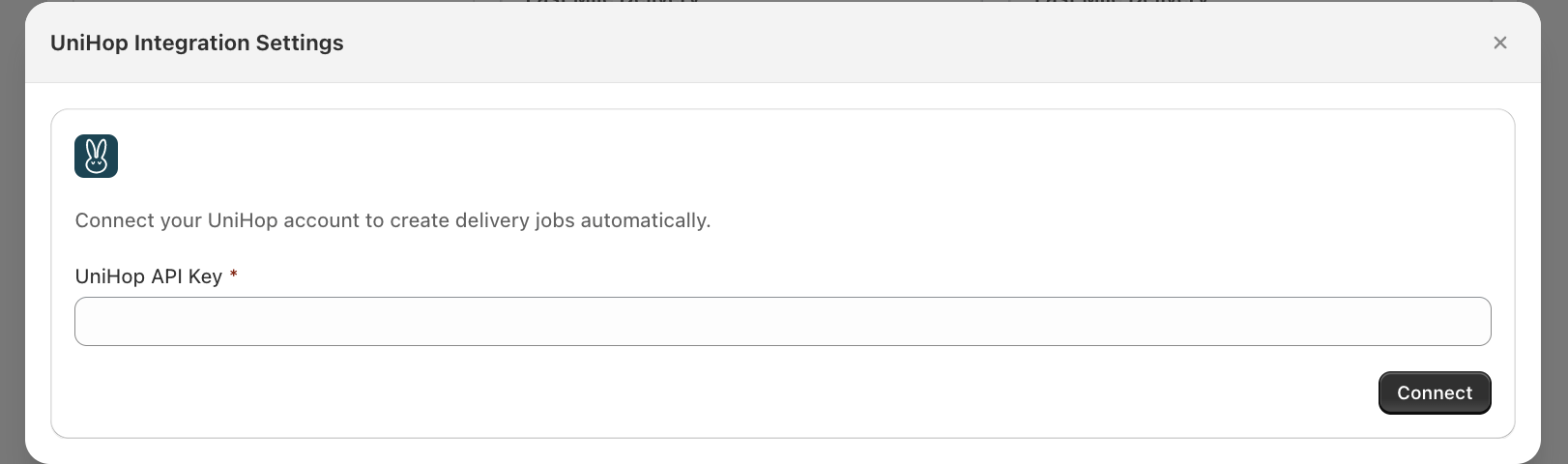
Bird verifies the key with UniHop. The remaining settings appear once you’re connected.
Configure settings
Notification emails
Add the emails to alert if Bird can’t schedule a delivery. Separate them with commas.
You’re only emailed when a failure is final. Timeouts and outages are retried quietly.
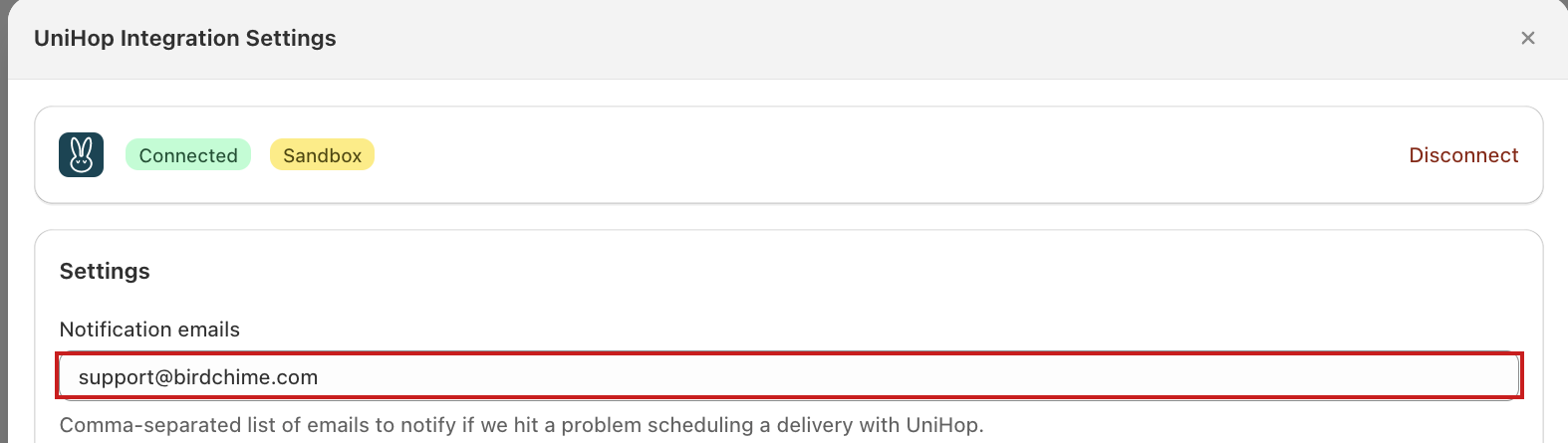
Delivery style
- Standard for most deliveries. This is the default.
- Special handling for catering, florals and fragile goods. Costs more.
- Custom uses handling rules UniHop sets up on your account. Talk to UniHop first.
Vehicle size
Choose the smallest vehicle your deliveries fit in: Sedan, SUV, Pickup truck, Van, Large van, Extra large van or Truck. UniHop sends that vehicle or larger.
Bird sends the order’s real weight, so keep your Shopify product weights accurate.
Driver tip
Add a flat amount to send the driver on every UniHop delivery. Leave it blank to send no tip.
Locations
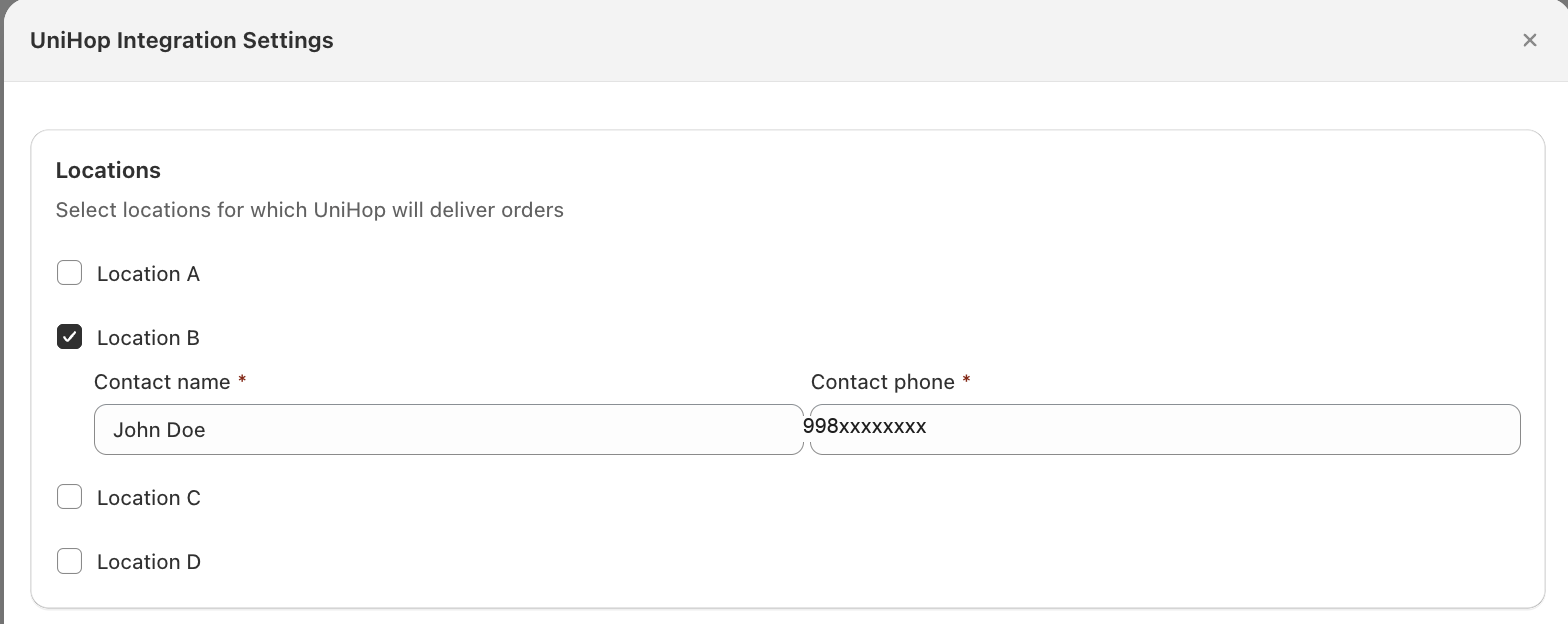
- Tick the locations UniHop delivers for. You don’t have to tick them all.
- Add a contact name, contact phone, and contact email to every ticked location. The email is pre-filled from your account email — change it if a different person handles pickup at that location.
- The phone is required. UniHop rejects deliveries with no pickup phone number.
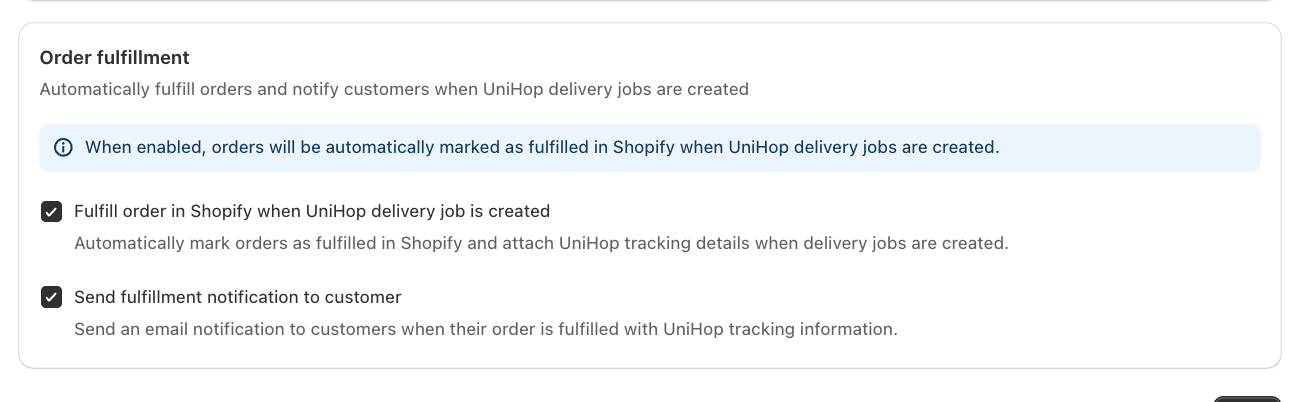
Order fulfillment
- Tick Fulfill order in Shopify when UniHop delivery job is created to mark orders fulfilled and attach UniHop tracking.
- Tick Send fulfillment notification to customer to email that tracking information to the customer.
- Leave both off to fulfill orders yourself.
Click Save.
UniHop has no rate section. What the customer pays comes from your own delivery rates; UniHop bills you separately.
Dispatching an order
- The customer picks a delivery date and time, and pays your delivery rate.
- Mark the order Dispatched in Bird. This is what sends it to UniHop — creating the order does not.
- Bird stores the tracking link on the order, and fulfills it in Shopify if you enabled that.
- Statuses update as the driver moves: out for delivery, then delivered, failed, or cancelled.
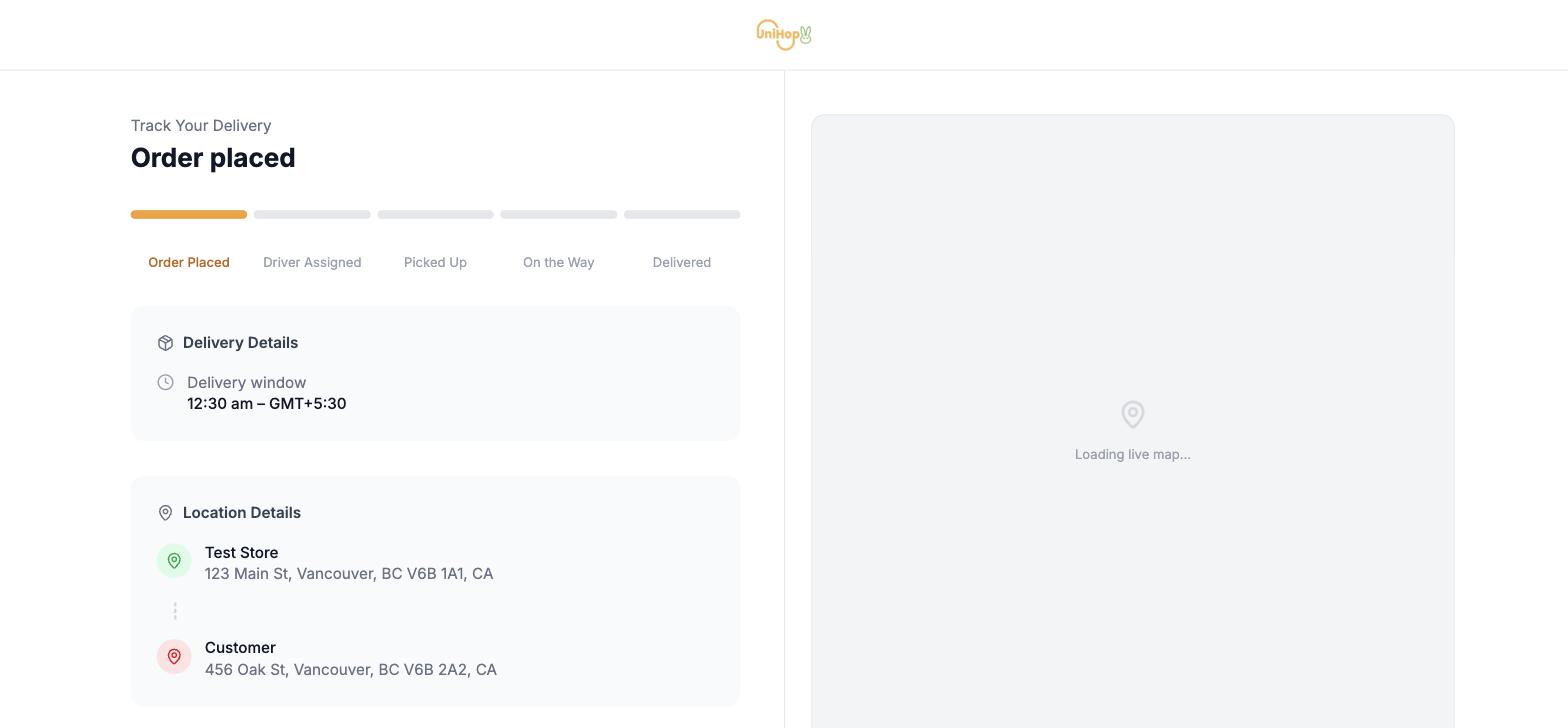
The tracking link is what the customer sees. It updates live as the order moves through Order Placed, Driver Assigned, Picked Up, On the Way and Delivered.
Disconnect UniHop
- Click Settings, then Integrations.
- Find UniHop and open it.
- Click Disconnect and confirm.
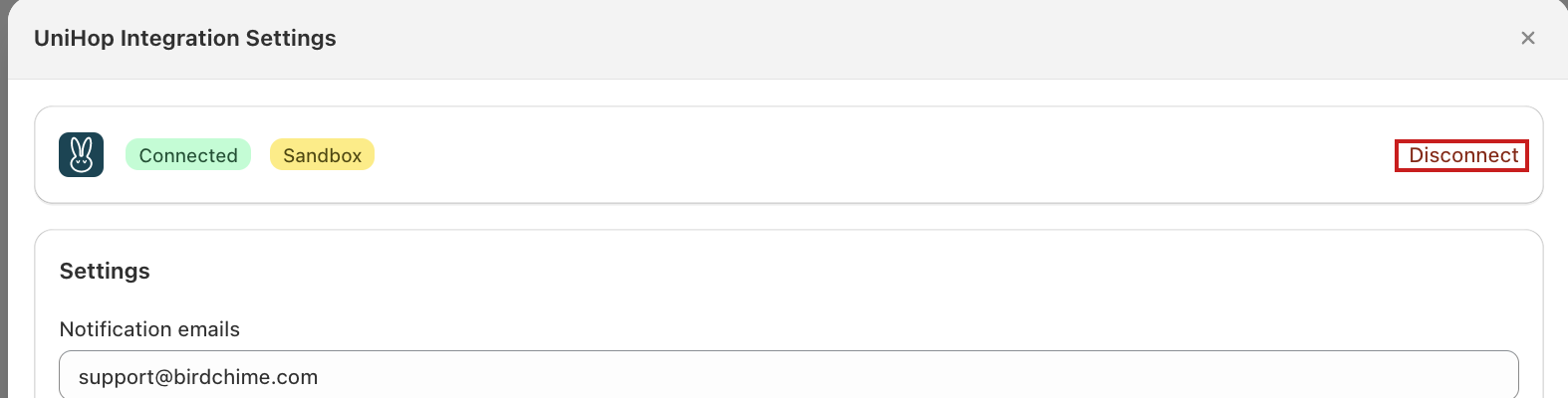
Bird stops dispatching right away. Deliveries already with UniHop are unaffected.
Notes
- Cancelling an order in Shopify cancels the UniHop delivery. A fee may apply once a driver has been assigned — see UniHop’s cancellation policy.
- Marking the same order Dispatched twice won’t create a second delivery.
- Editing an order after dispatch does not update it at UniHop. Change it there, or cancel and re-dispatch.
Troubleshooting
Catering or florals were handled as ordinary parcels. Set Delivery style to Special handling.
The API key is rejected. Billing isn’t set up, so your UniHop account is still pending — the key looks valid in the portal but won’t connect. Add a payment method under Billing, then reconnect.
Nothing reached UniHop. Check your notification emails — Bird emails the reason when a dispatch fails, usually a bad drop-off address, a missing phone, or a rejected API key. If there is no email, confirm the order was marked Dispatched, the location is ticked, and it has a contact name and phone.
Related Articles
Was this article helpful?
Thanks for your feedback!