
 Last Mile Delivery
Stuart

Stuart is a last-mile delivery network in France, the United Kingdom, and Poland. Connect your Stuart account to Bird and delivery orders are priced at checkout and dispatched to Stuart.
For help with Stuart pricing, coverage, or anything about your Stuart account, contact the Stuart team.
Requirements
- An active Stuart account with a Client ID and Client Secret
- A store location in France, the United Kingdom, or Poland
- Local Delivery set up, with delivery days and time slots
- A complete address on every location Stuart collects from
- A package size selected under Packaging
Connect Stuart
- Click Settings, then Integrations.
- Find Stuart and open it.
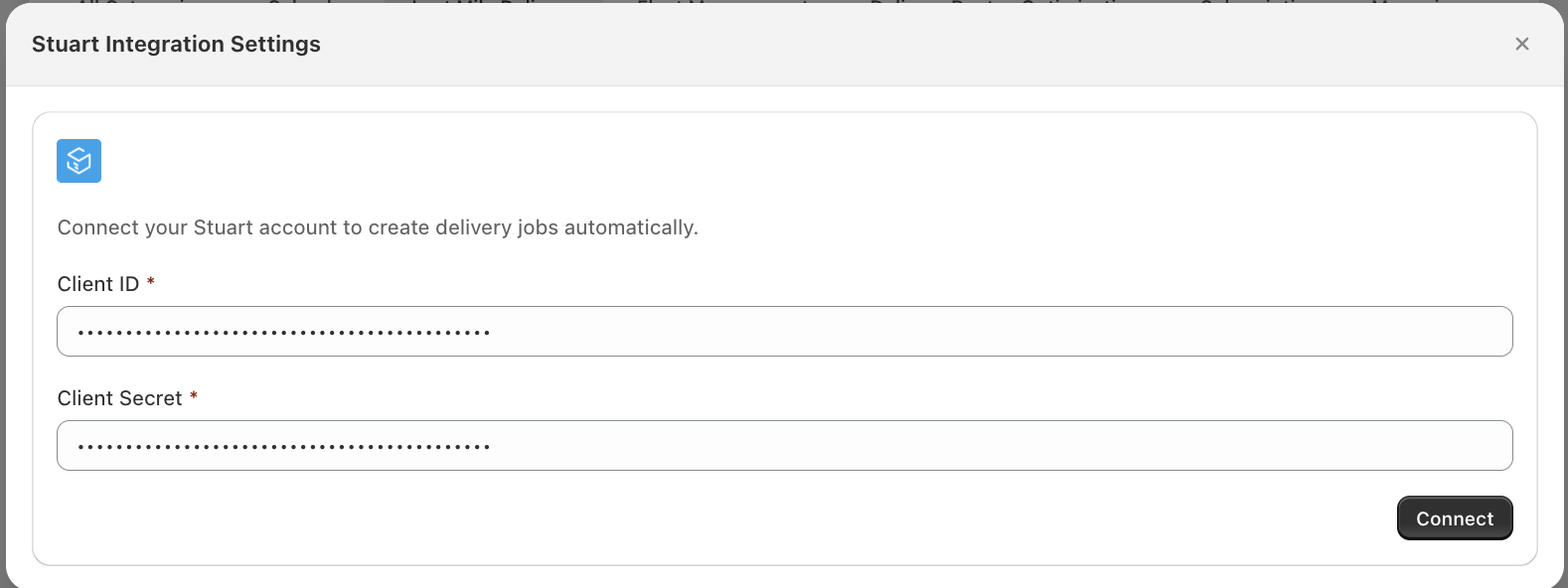
- Enter your Client ID and Client Secret, and click Connect.
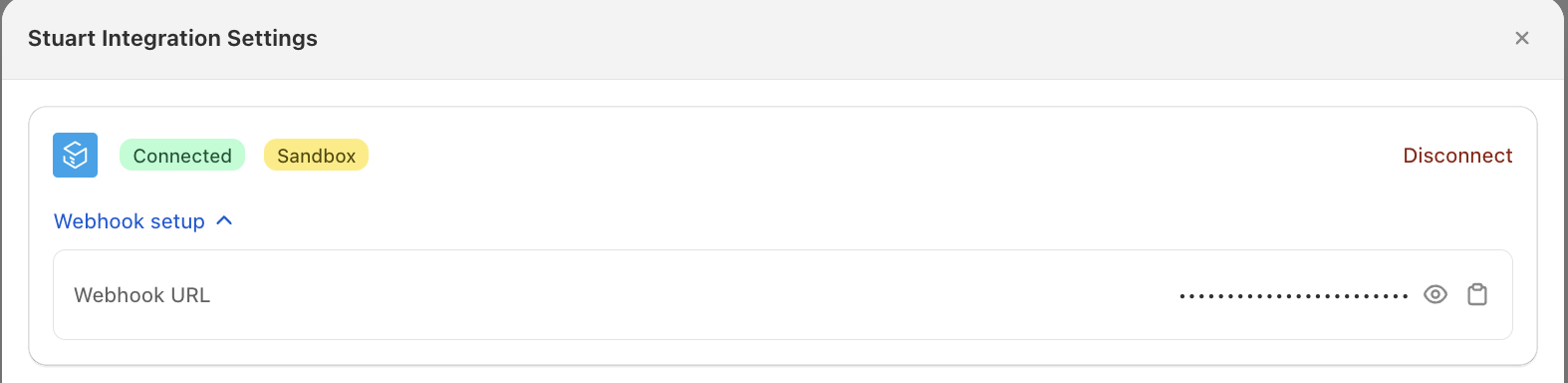
Bird verifies the credentials with Stuart. The remaining settings appear once you’re connected.
Configure how deliveries work
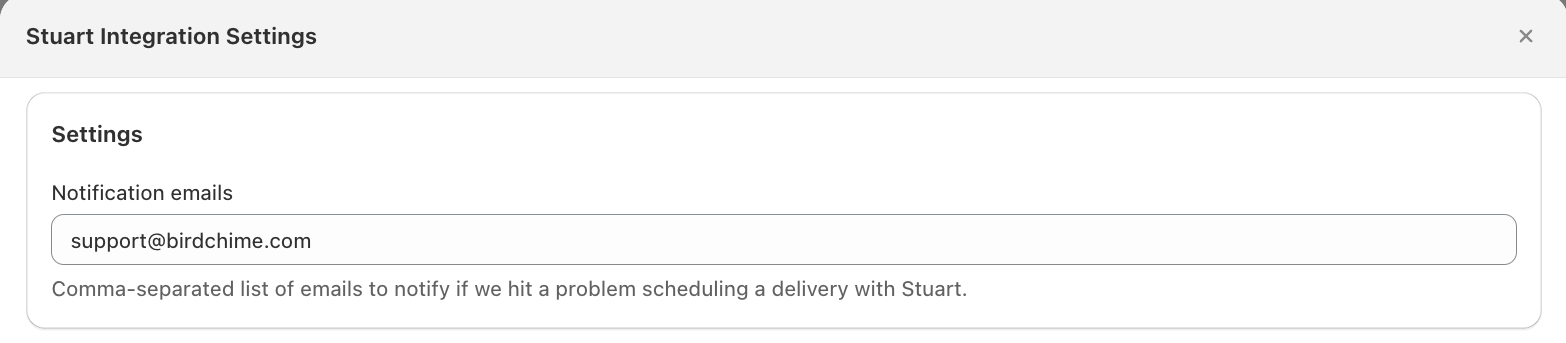
Notification emails
Add the emails to alert if Bird can’t schedule a delivery with Stuart. Separate them with commas.
Locations
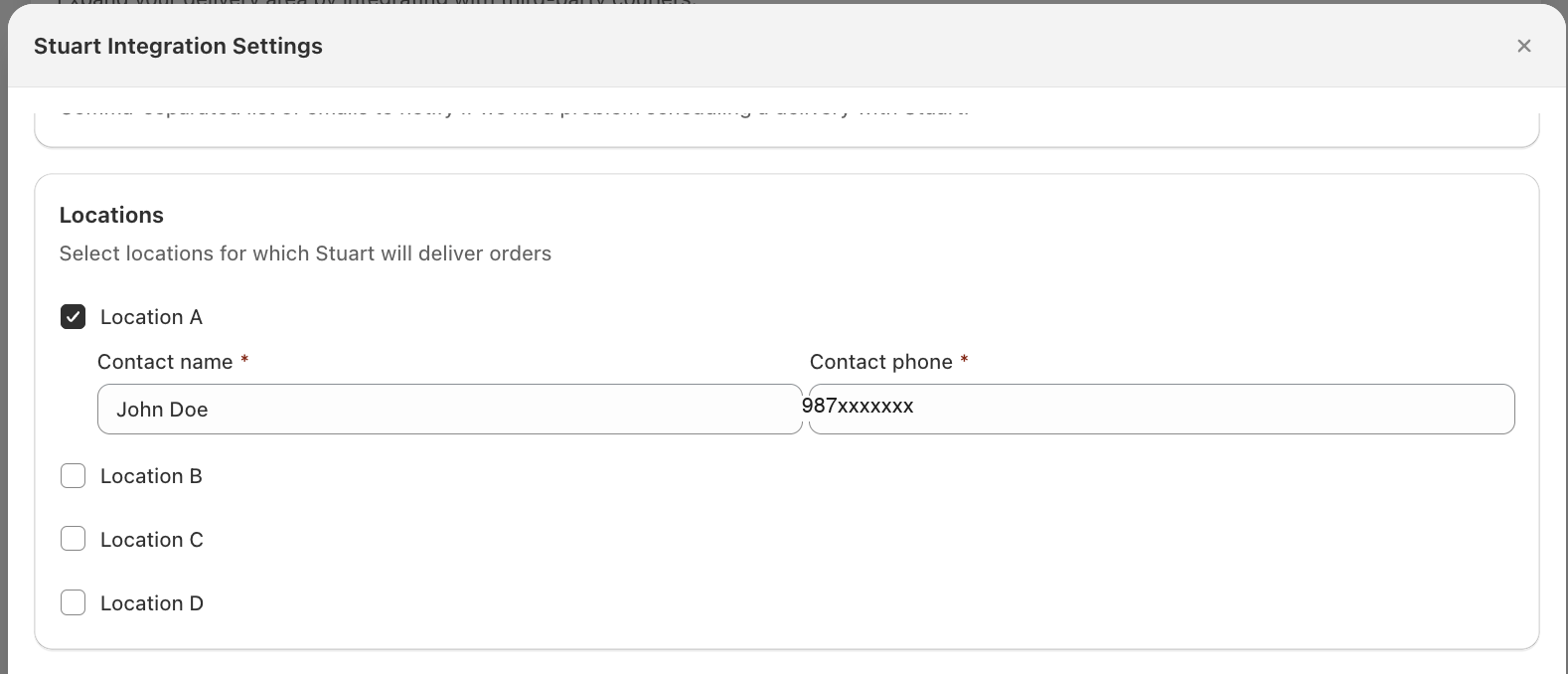
- Tick the locations Stuart delivers for. You don’t have to tick them all.
- Add a contact name and contact phone to every ticked location, so a driver can reach someone at pickup. Contact email is optional.
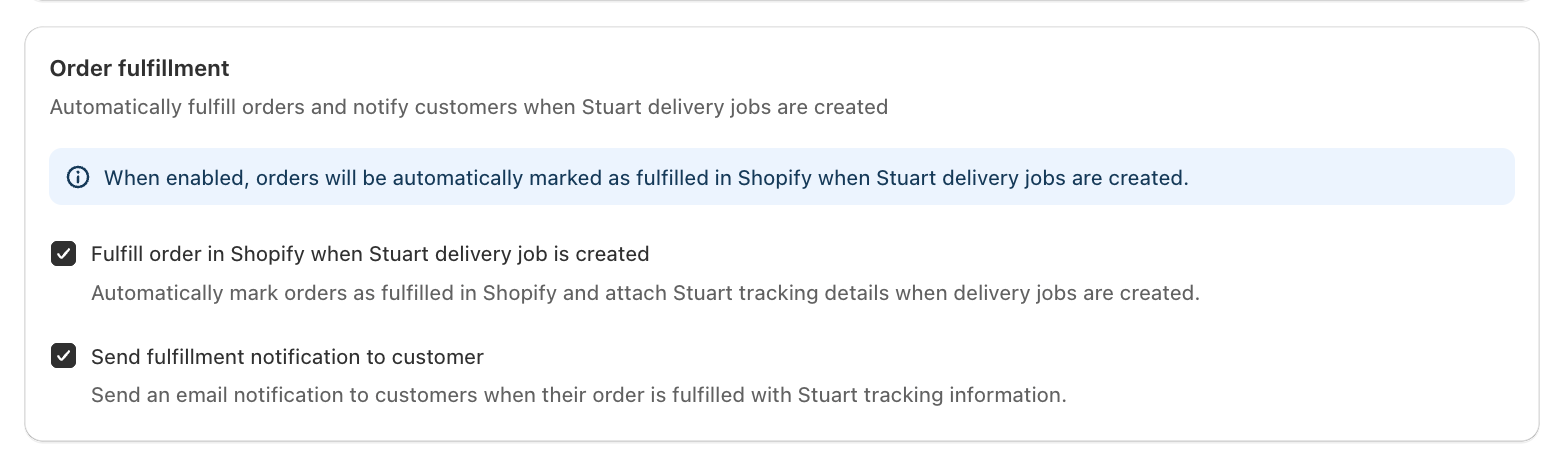
Order fulfillment
- Tick Fulfill order in Shopify when Stuart delivery job is created to mark orders fulfilled and attach Stuart tracking.
- Tick Send fulfillment notification to customer to email that tracking to the customer.
- Leave both off to fulfill orders yourself.
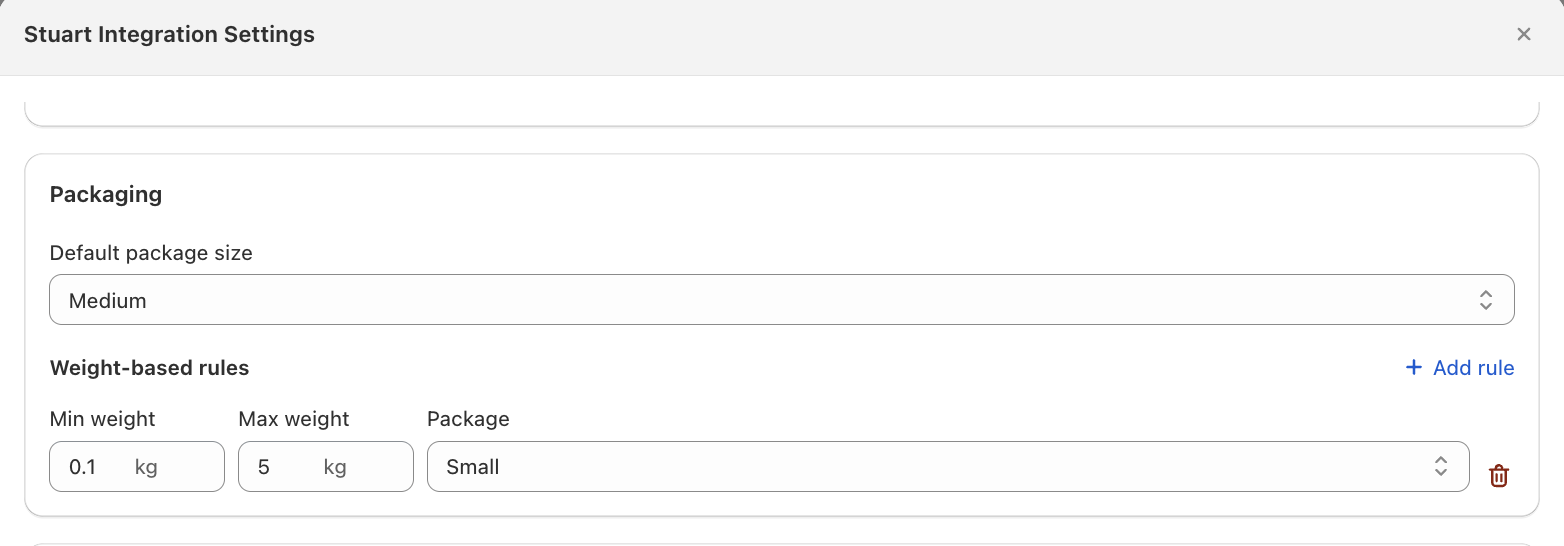
Packaging
Pick the default package size and add weight‑based rules, so quotes and pickups are accurate. Stuart requires a package size to return a quote or accept a dispatch — see Requirements above.
Configure Stuart delivery rates
Want Stuart’s own rate — not a flat Bird rate — to show at checkout? Here’s how.
Limitation: This requires Shopify’s Carrier-Calculated Shipping (CCS), the feature that lets Shopify ask Bird’s server for a rate in real time. Without CCS, Stuart’s price can never reach checkout, however Stuart itself is set up.
- Turn on Bird Rates with CCS under Rates > Rates engine. You need CCS on your Shopify plan — see Shopify’s carrier-calculated shipping documentation.
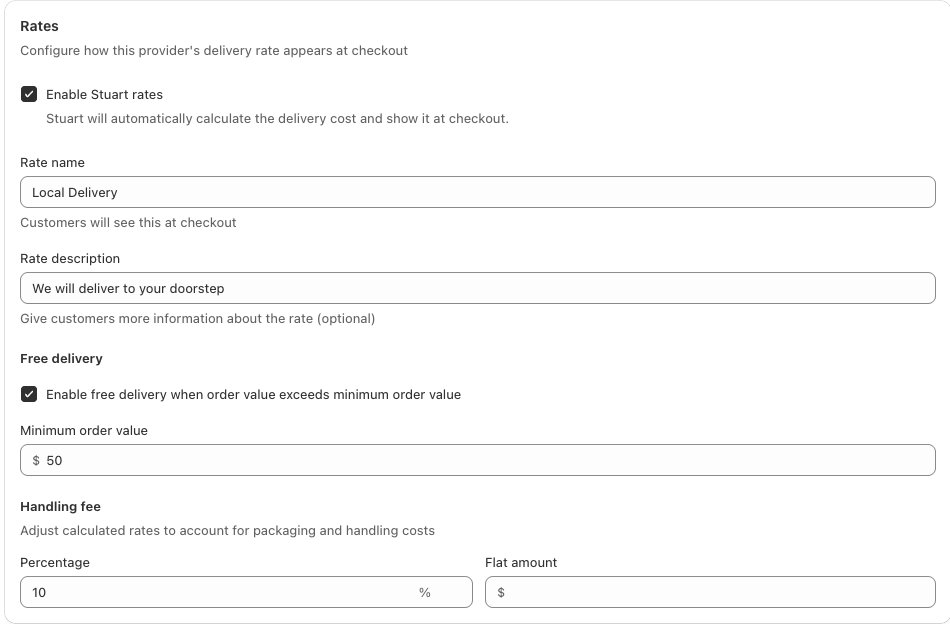
- Under Rates, turn on Enable Stuart rates. Until CCS is on, this toggle stays disabled.
- Set the Rate name and description customers see at checkout.
- Optionally, turn on free delivery above a minimum order value, and add a handling fee (percentage and/or flat amount) on top of Stuart’s quote.

Behind the scenes: Bird calls Stuart’s API in real time for each checkout, sending only the pickup address, delivery address, and package size — never the customer’s name, phone number, or chosen delivery time. Scheduling stays separate from the rate: which dates and times a customer can pick is controlled entirely by your own Bird availability settings. Stuart only receives the customer’s chosen time window later, at dispatch.
Dispatching an order
- The customer picks a delivery date and time, and (once rates are enabled) sees the Stuart rate.
- Mark the order Dispatched in Bird. This is what sends it to Stuart, including the customer’s chosen delivery window — creating the order does not.
- Stuart collects from your location and delivers inside the window the customer chose.
- Tracking details are stored on the order, and (if enabled) shared with customers. You’ll see clear success/error messages if something needs attention.
Disconnect Stuart
- Click Settings, then Integrations.
- Find Stuart and open it.
- Click Disconnect and confirm.

Bird stops quoting and dispatching right away. Deliveries already with Stuart are unaffected.
Notes
- Cancelling a dispatched order in Shopify cancels the Stuart delivery.
- Marking the same order Dispatched twice won’t create a second delivery.
- Editing an order after dispatch does not update it at Stuart. Change it there, or cancel and re-dispatch.
- Stuart prices in the local currency of each market it serves — EUR, GBP, or PLN.
- Use the Connect card anytime to verify credentials after changing them.
Troubleshooting
No Stuart rate at checkout. Confirm:
- Enable Stuart rates and Bird Rates with CCS are both on (see Configure Stuart delivery rates above)
- The location is ticked
- A package size is selected under Packaging
- Both the pickup and delivery addresses are inside Stuart’s coverage (France, UK, Poland)
Nothing reached Stuart. Check your notification emails — Bird emails the reason when a dispatch fails, usually a missing package size, an incomplete address, or a rejected API key. If there’s no email, confirm the order was marked Dispatched in Bird.
Related Articles
Was this article helpful?
Thanks for your feedback!