
 Shopify Configuration
How to Disable the Dynamic Checkout Button
You’ll learn how to disable Shopify’s dynamic checkout button to ensure customers go through the date selection process before checkout.
The dynamic checkout button bypasses your cart page entirely, completely skipping your Bird Pickup & Delivery date picker widget.
This means customers never see or interact with the date selection process, regardless of whether you’ve configured dates as required or optional in your app settings.
Disabling it ensures customers must go through your cart page where they can (and should) select pickup or delivery dates.
Not the same as your Add to Cart button: the dynamic checkout button is a separate express buy button (e.g. Shop Pay) that sits below Add to Cart and lets shoppers skip the cart page. It is not the Add to Cart button itself — disabling it has no effect on Add to Cart.
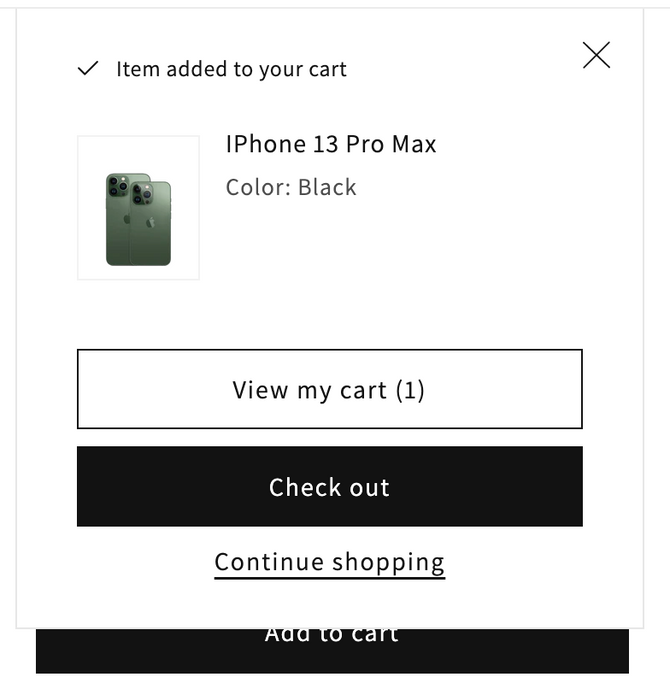
How to Disable Dynamic Checkout Button
Follow these steps to disable the dynamic checkout button in your Shopify theme:
-
Access Theme Customizer
- From your Shopify admin, go to Online Store > Themes
- Find the theme that you want to edit, and then click Customize
-
Navigate to Product Settings
- Click Products
- Select Default product, or the product template that you want to edit
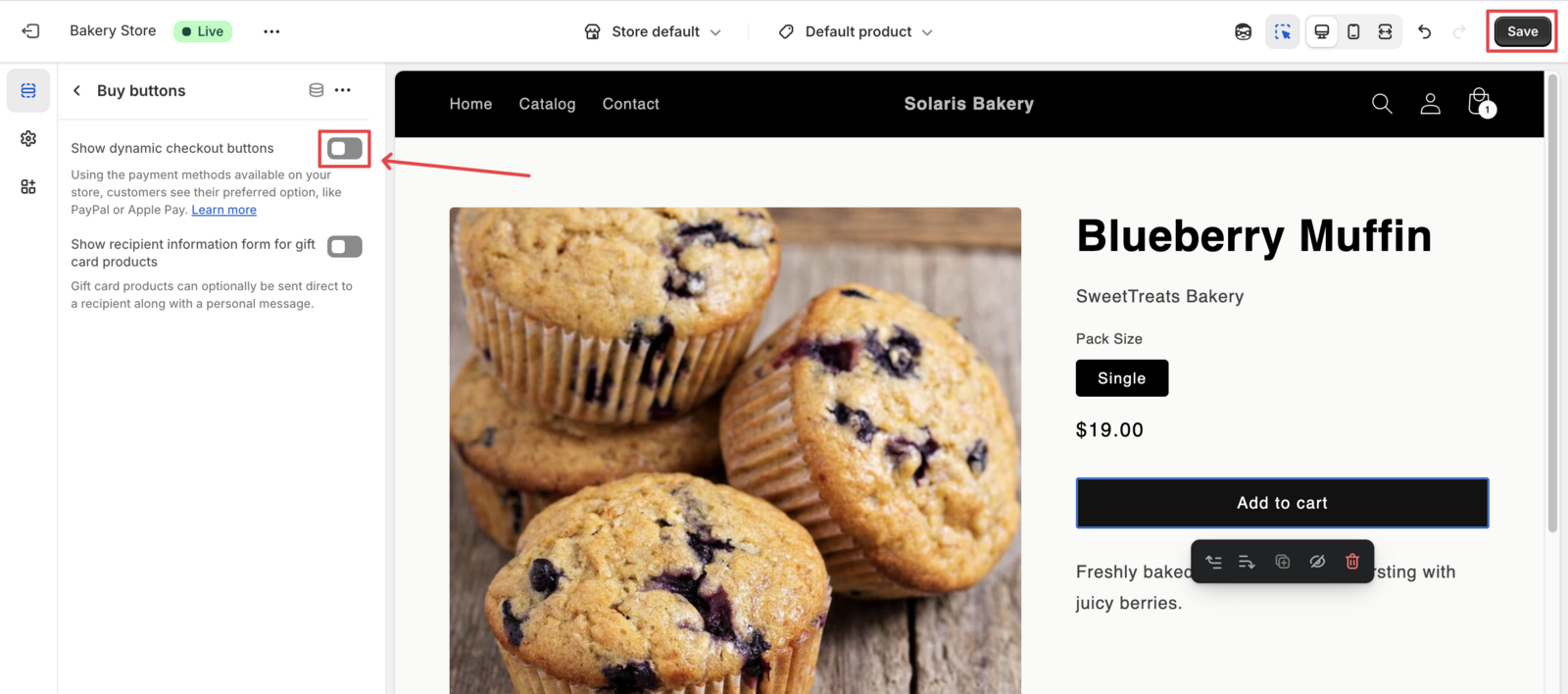
-
Access Buy Button Settings
- In the Product information section, click Buy buttons
-
Disable Dynamic Checkout
- Deselect Dynamic checkout button
- Click Save to apply changes
[Placeholder Screenshot: Show the dynamic checkout button deselected]
Troubleshooting
If you don’t see the Dynamic checkout button setting, then you need to update your theme or edit your theme code.
Still seeing the button after these steps?
There’s one more way to hide it: in the Bird app, go to Settings > Developer > Advanced styling (Developer Settings) and add .dynamic-checkout__content { display: none; }. Or contact Birdchime Support and we’ll take a look.
Related Articles
Was this article helpful?
Thanks for your feedback!